 arctone.studio
Plug-in protection
Run any plug-in in a separate helper process. If one stops, only its slot goes quiet, and it reloads in a second or two.
Plug-in host · Standalone, VST3 & Audio Unit
The layering plug-in host for Mac and Windows.
Stack, split and route your instruments and effects into patches, play them live with continuous audio between patch changes, and find every sound you own in one Browser. arctone.PresetImporter is built in.
Try it free for 14 days. Download it and the whole app is yours for 14 days, nothing held back: no sign-up, no email, no credit card. For Mac (macOS 11 or later, Apple Silicon and Intel); the Windows version is coming soon.
Download the free trial for Mac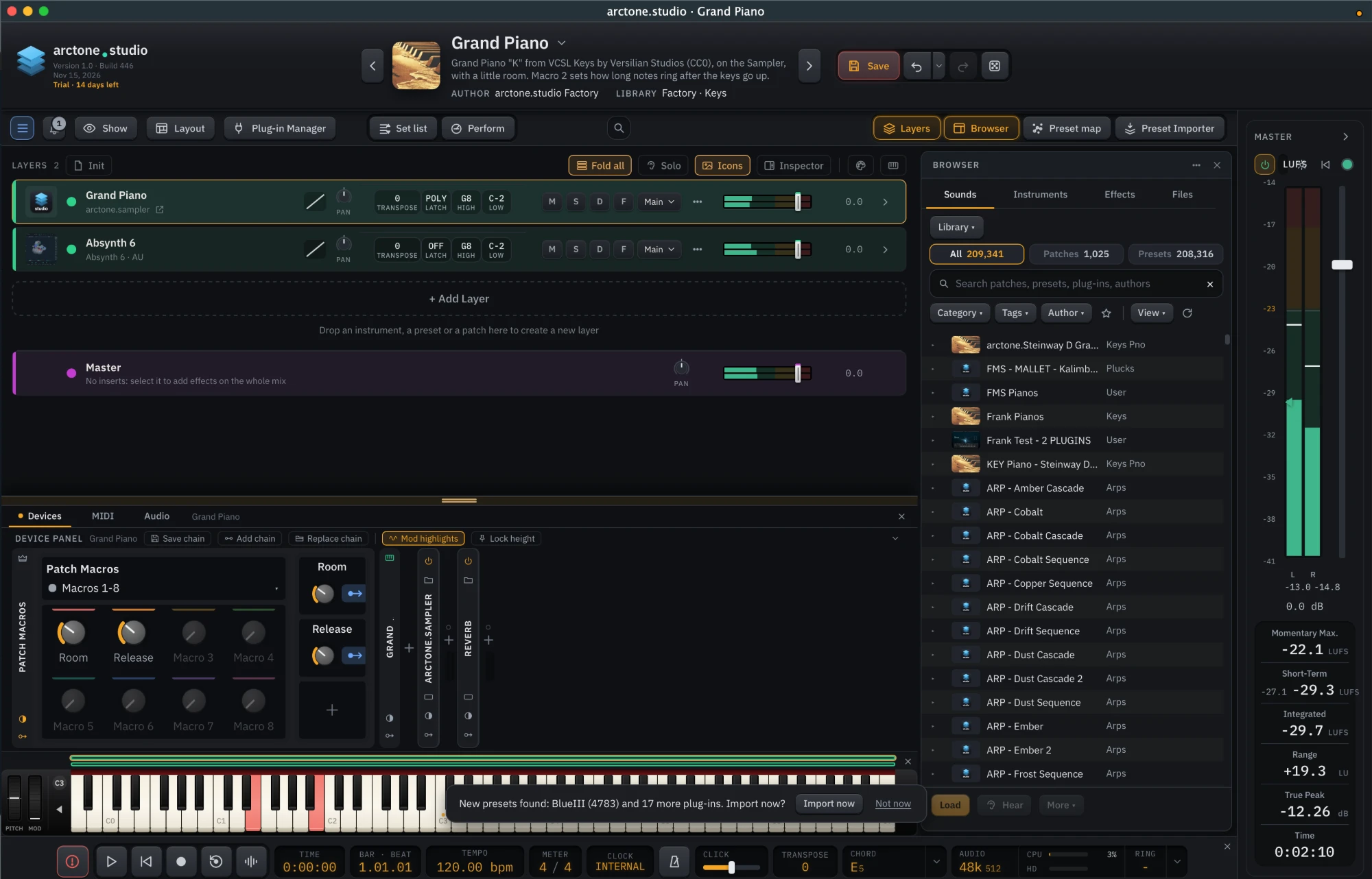
Features
For the complete list of arctone.studio’s many features, download and read the manual: arctone.studio Manual (PDF).
The following are some of the main features in arctone.studio.
arctone.studio is a host for all of your instruments, audio effects and MIDI effects (VST3, VST2 and Audio Unit on Mac): load them side by side, stack them into layers, and play them as one instrument. Run it on its own or as a plug-in inside your DAW: the standalone app and the plug-ins share one engine and one set of files, so a patch saved in one opens in the others. It comes with over 1,000 factory patches built on 98 sampled instruments, playable and inspiring from the first note, before you add a single plug-in you own. Drop any of your own plug-ins or presets onto a patch and it becomes a new layer.
Every patch has 32 macro knobs, each one ready for your controller or your DAW’s automation. Add any of 41 modulators, LFOs and envelopes among them, and one click turns every knob in reach into a target, so a single modulator can move as many parameters as you like.
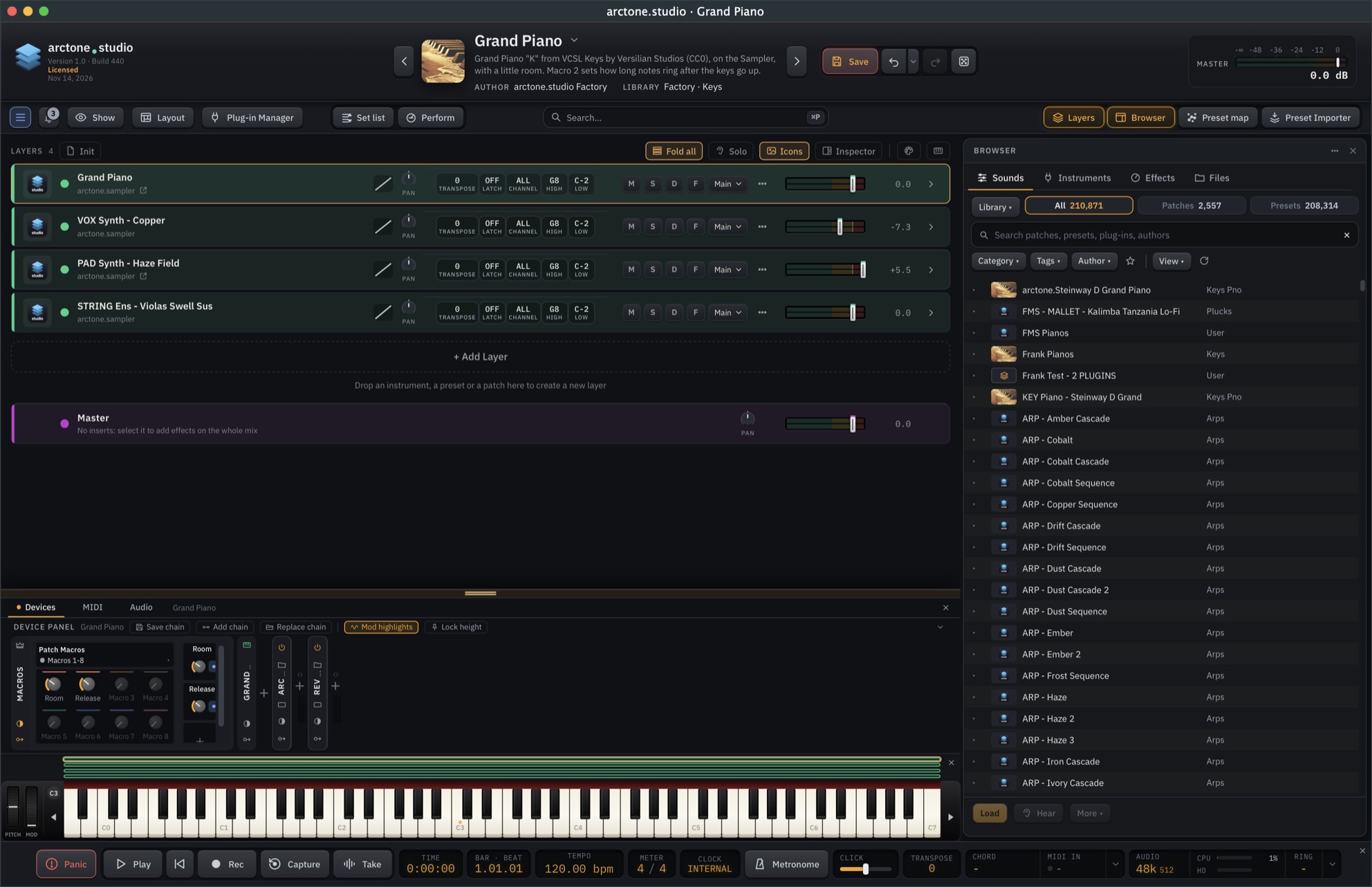
The main window. Below is arctone.studio’s main window, where you build, play and save your patches. Each numbered part is explained underneath it.
123456789101112131415161718192021222324Hover a number below to see what each part does.
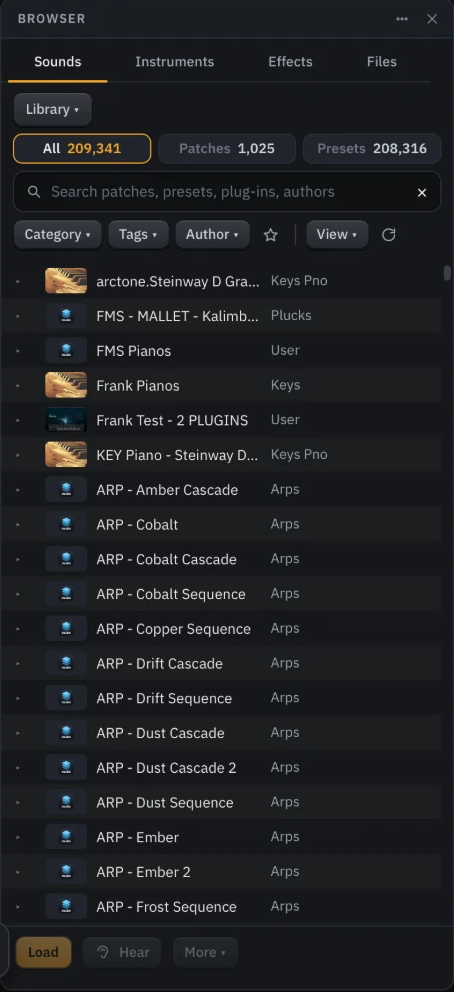
Factory patches, your own patches and every preset imported from your plug-ins sit in one list you can search, filter and hear. On our M4 test Mac it holds 209,341 sounds: 1,025 patches and 208,316 plug-in presets. Full drag and drop: pull any sound onto the layers to play it.
 1234567891011121314
Hover a number below to see what each part does.
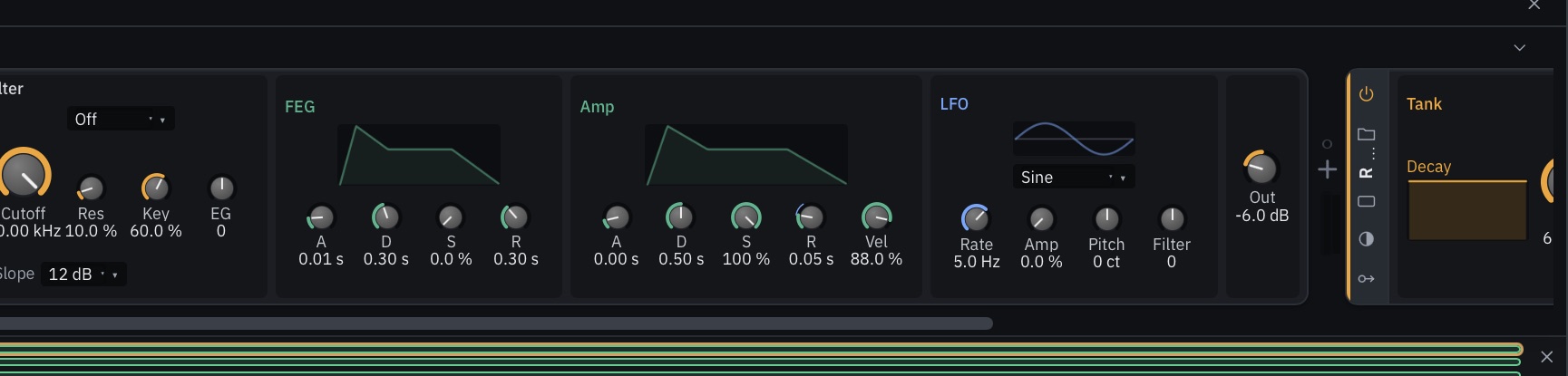
A layer is a track: what plays it, its key range and velocity zone, its plug-in chain, its fader, pan and sends. Under the layers, the Device Panel shows the selected layer’s chain in signal order — MIDI effects, instrument, effects — with the patch’s macros and modulators at its left.
 1234567891011
Hover a number below to see what each part does.
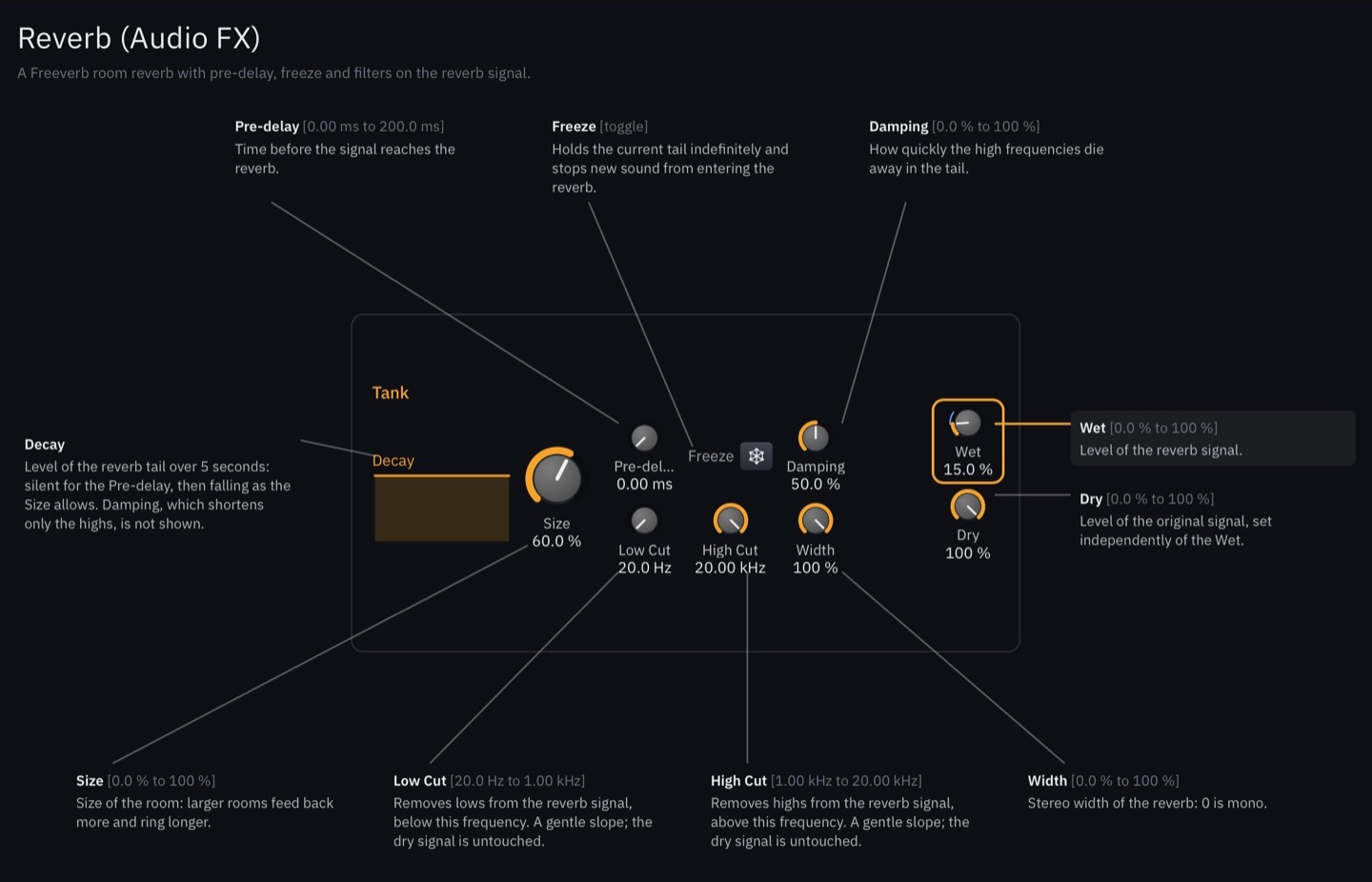
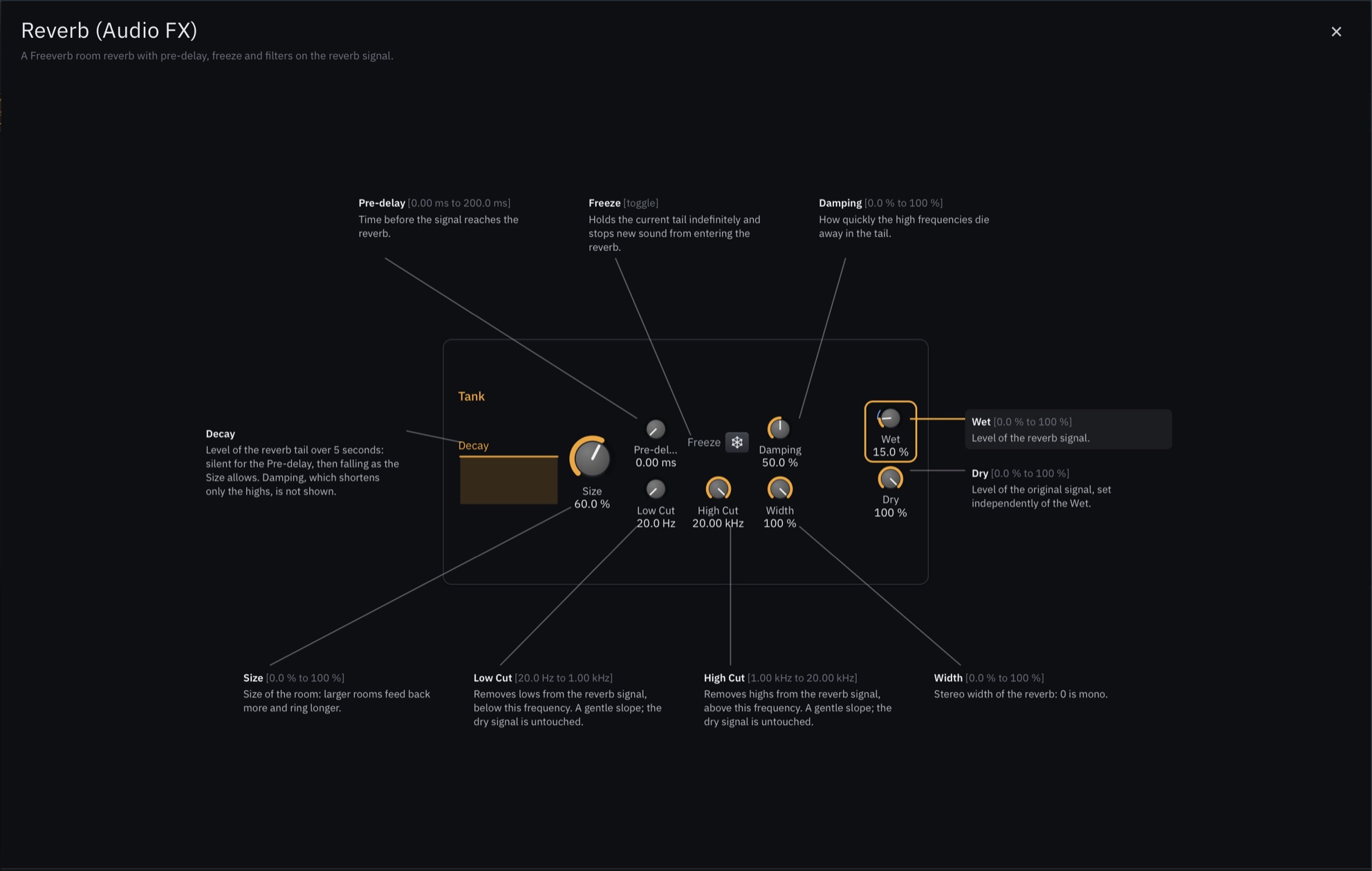
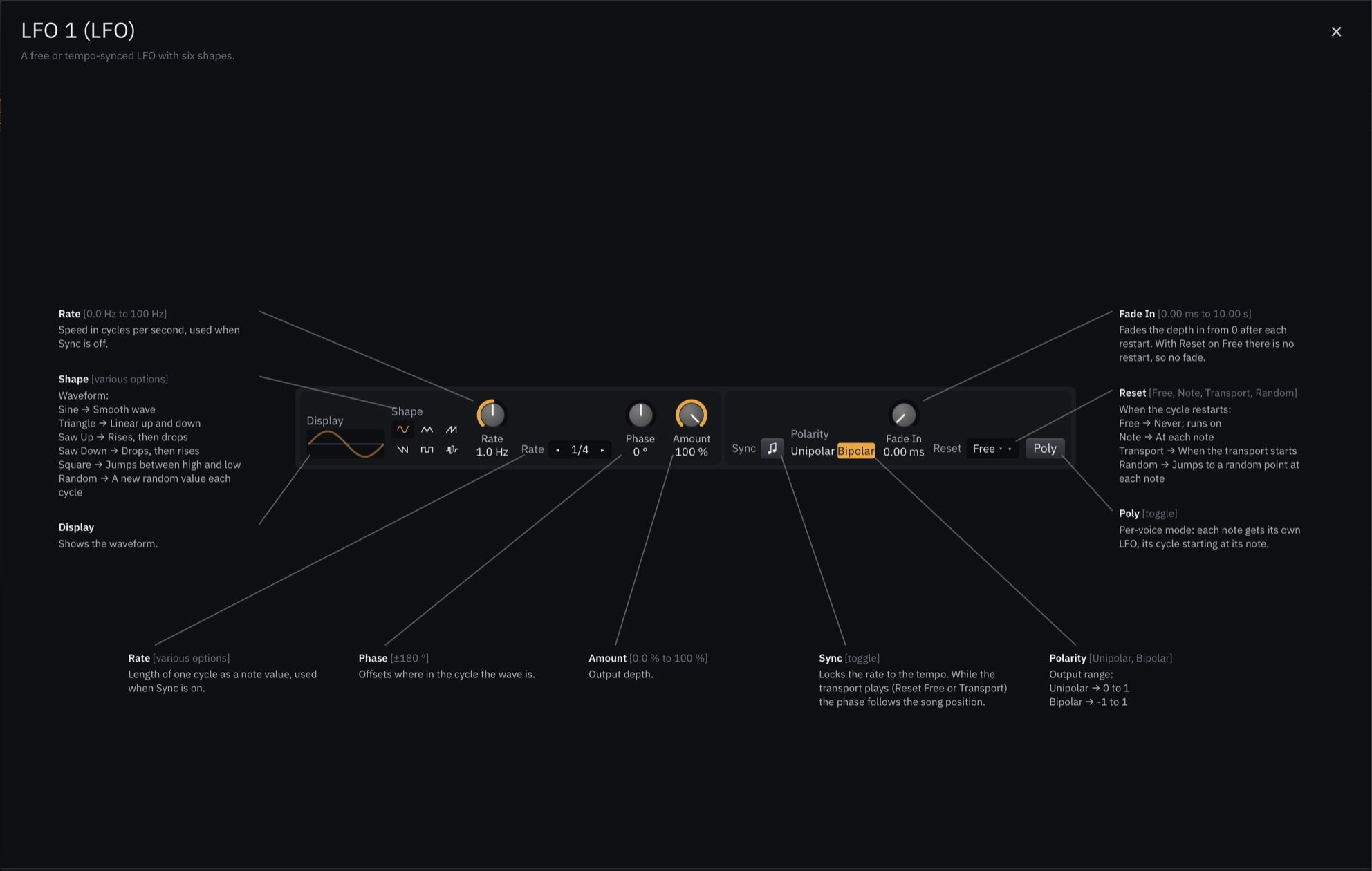
Press F1 on any device or modulator and it opens large, with every control labelled — and the controls still work, so you can turn them and hear the change while you read.
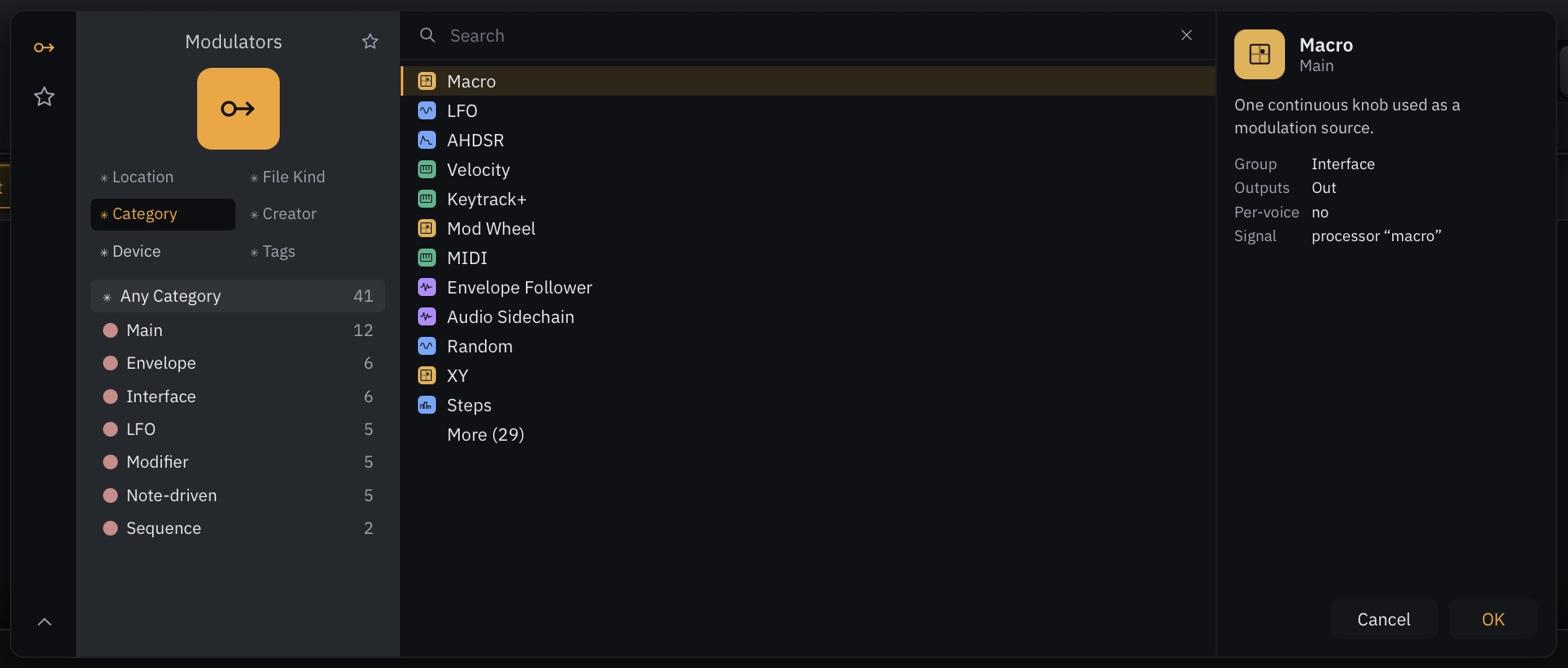
Thirty-two macros per patch, each a named DAW automation lane, MIDI-learnable and addressable over OSC. Forty-one kinds of modulator work on a device, a layer or the whole patch.
 123456789
Hover a number below to see what each part does.
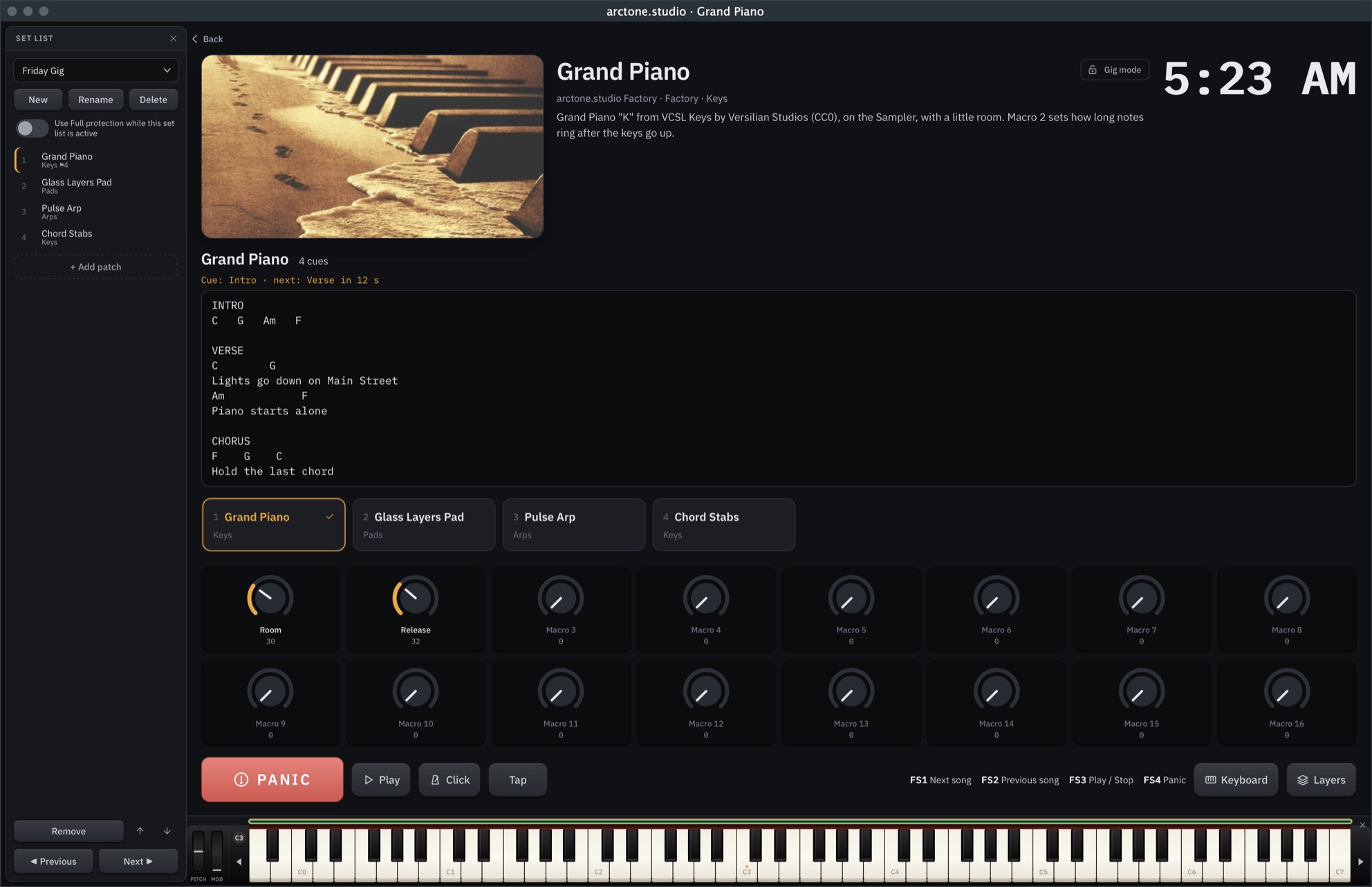
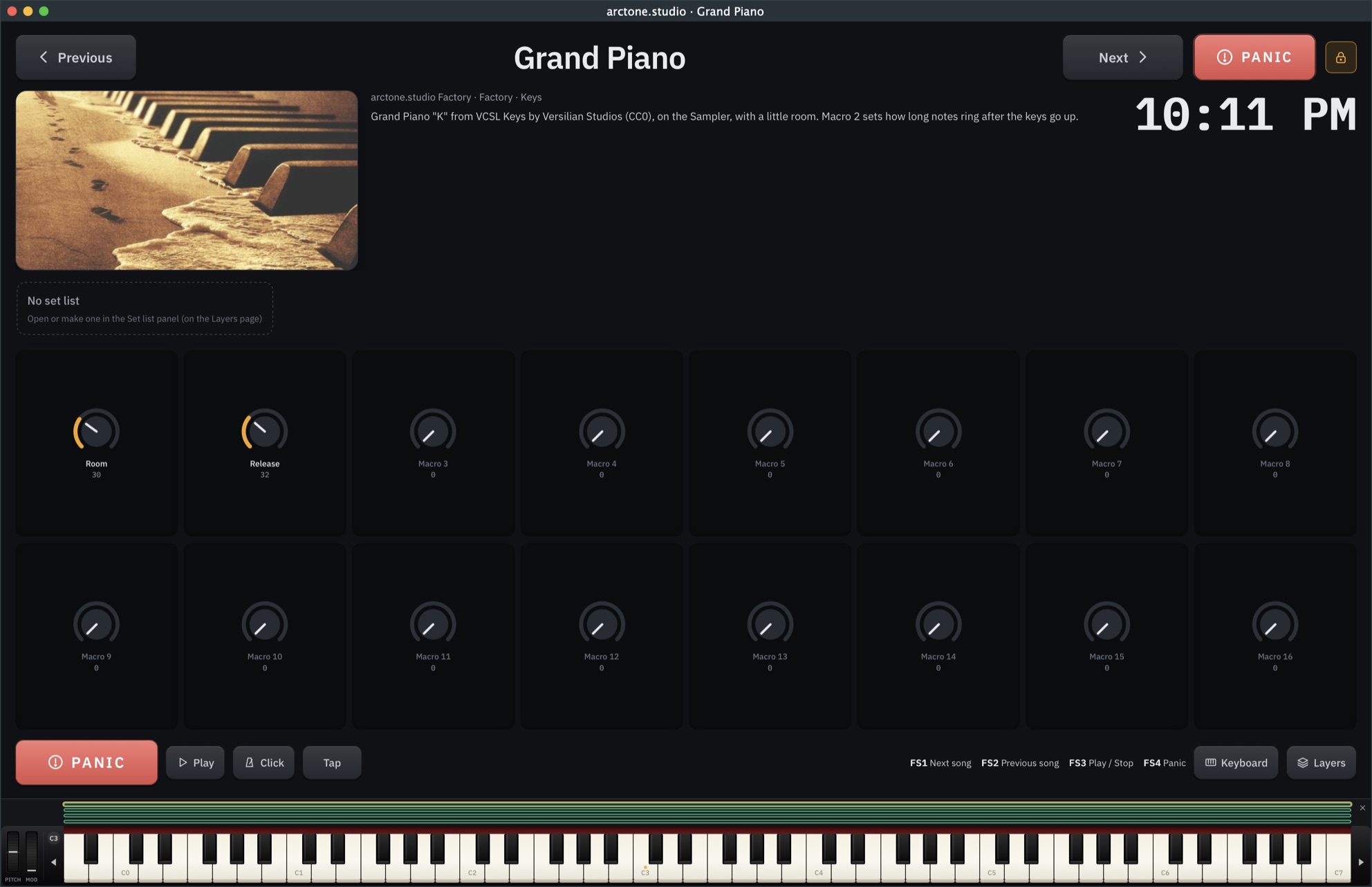
This is the Perform view, the page you play from on stage. Your set list runs down the left side: the night’s patches in playing order, with the current one marked. Step to the next patch with a click, a footswitch or a program change, and the sound never stops: up to eight outgoing patches keep ringing out while the new one plays, note-offs reach the patch that started the note, and the next songs in the set list are already loaded, so every change is instant and seamless.
 12345678910111213141516
Hover a number below to see what each part does.
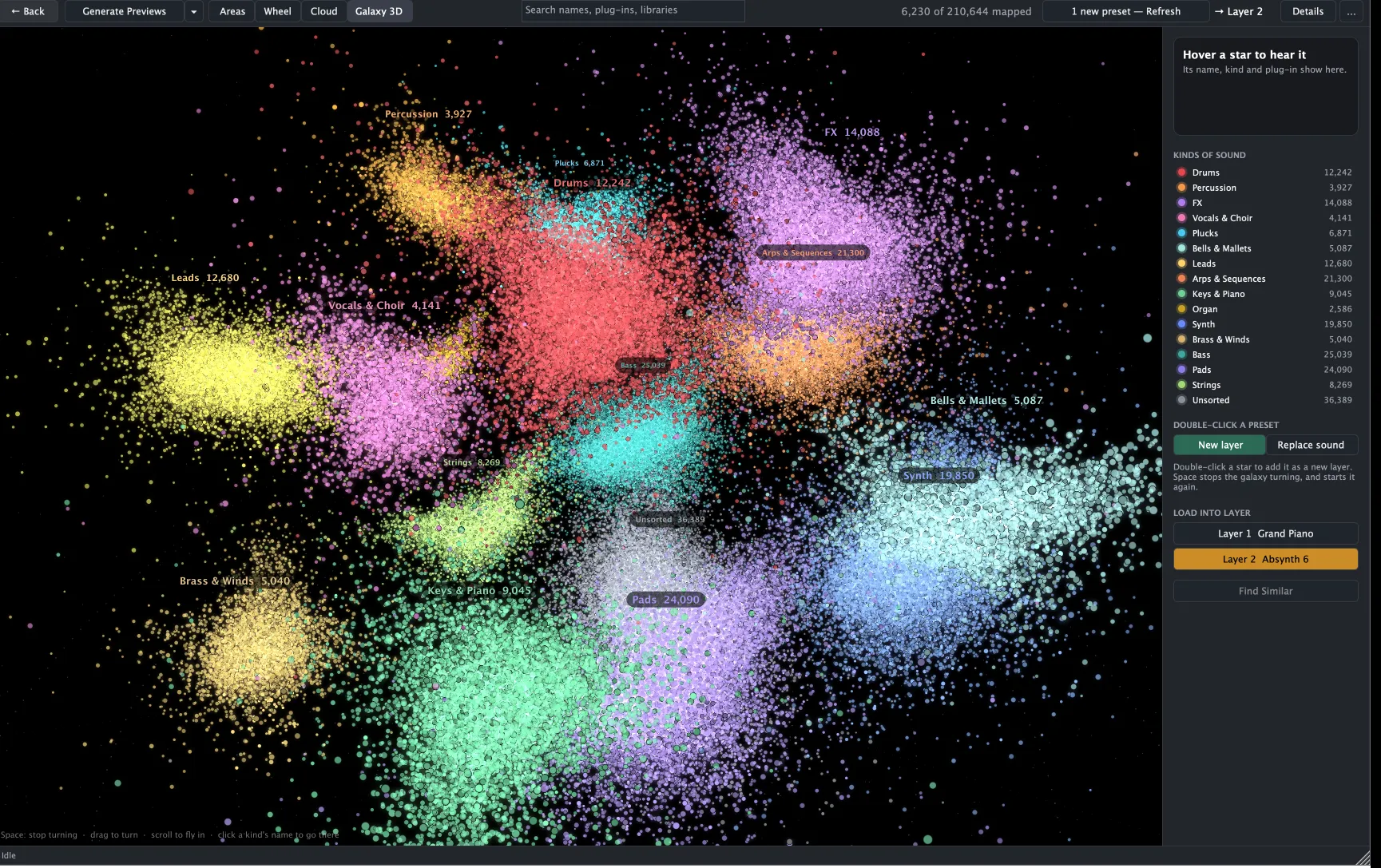
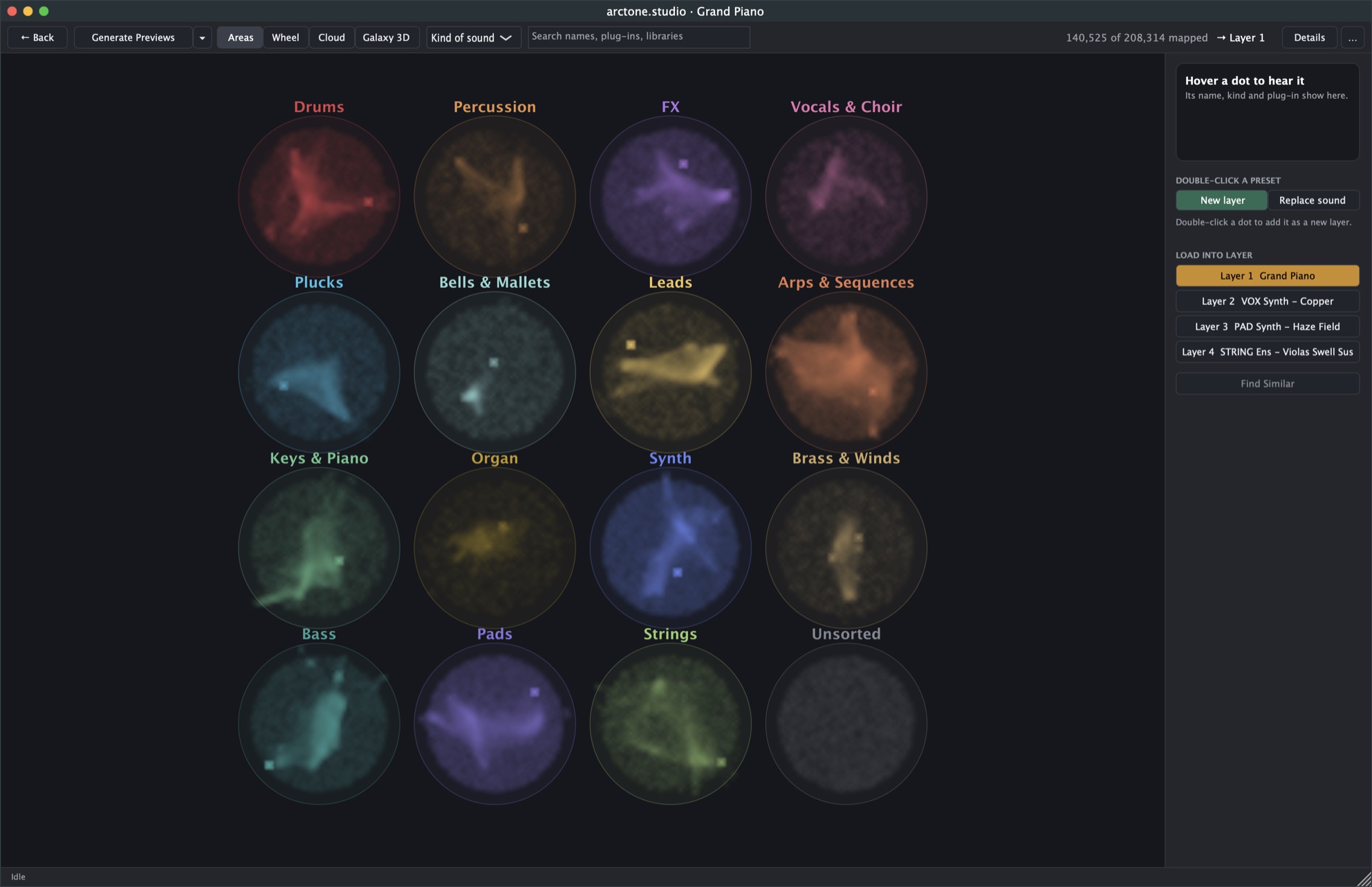
This is the Preset map view: your whole library laid out as a map of sound. Every measured preset is placed by how it sounds, so similar sounds sit side by side and you can find one by ear instead of by name. Here, Galaxy 3D shows a library of 210,644 sounds on our M4 test Mac, gathered into clouds by kind.
To audition, just move the mouse. Every star is a preset, and hovering over one plays its short preview at once, with its name, kind and plug-in shown beside the map. Sweep the mouse across a cloud and you hear preset after preset as fast as you can move, with no plug-in to open and no list to scroll, so in a few minutes you can hear hundreds of sounds out of all 210,000. Because similar sounds sit together, when you hear one you like, the ones around it are its closest relatives: keep moving through that neighbourhood, or click Find Similar to see the closest matches. Drag to turn the galaxy, scroll to fly in, and click a kind’s name to fly straight to its cloud. When you find the one, double-click it to add it to your patch as a new layer or to replace the sound on the current one.
 123456789101112131415
Hover a number below to see what each part does.
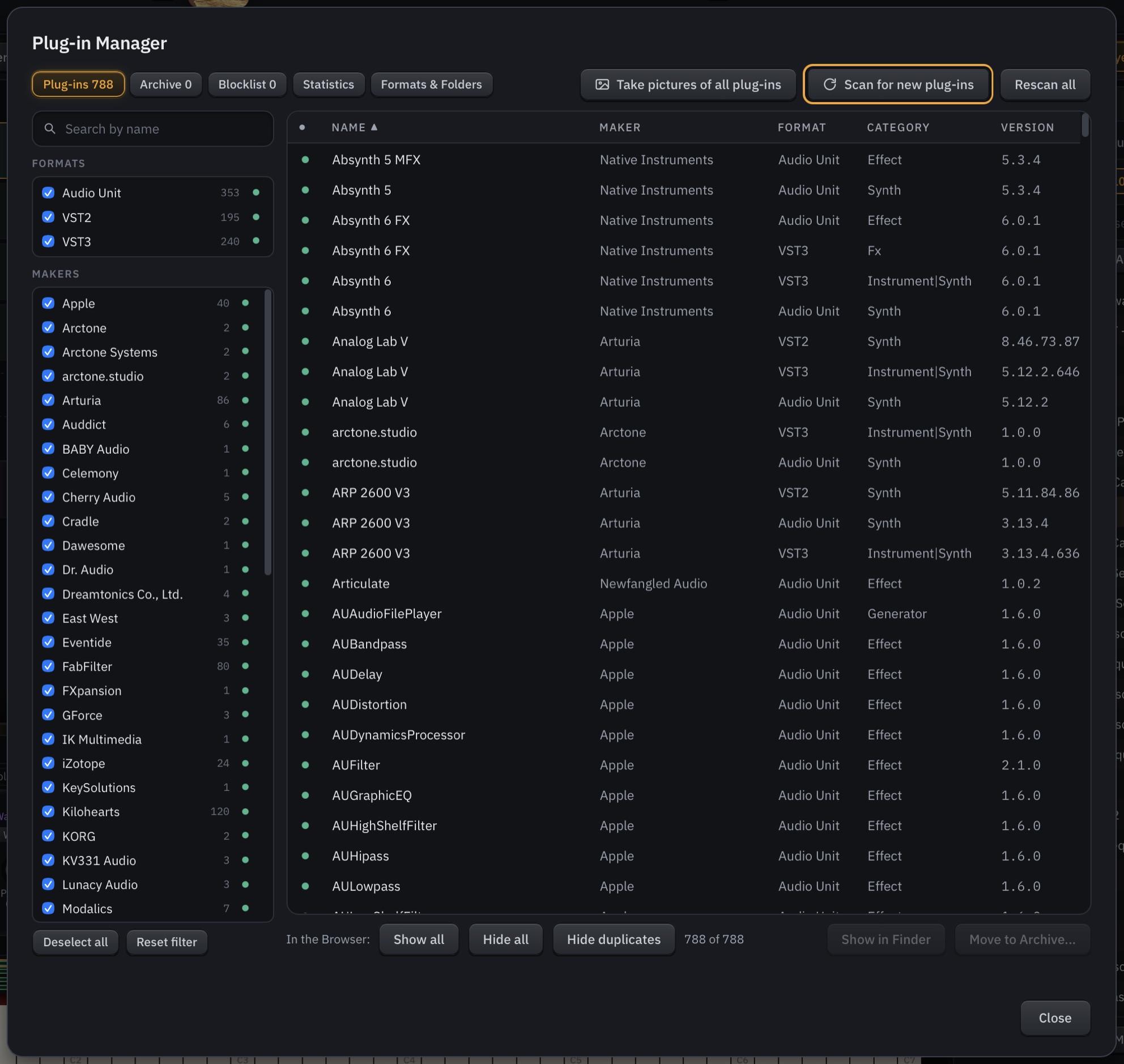
Every plug-in on your computer in one window: 788 on our M4 test Mac, across Audio Unit, VST2 and VST3. Scan for new ones, sort and filter them, keep duplicates out of the Browser, and archive the ones you don’t use.
 123456789101112
Hover a number below to see what each part does.
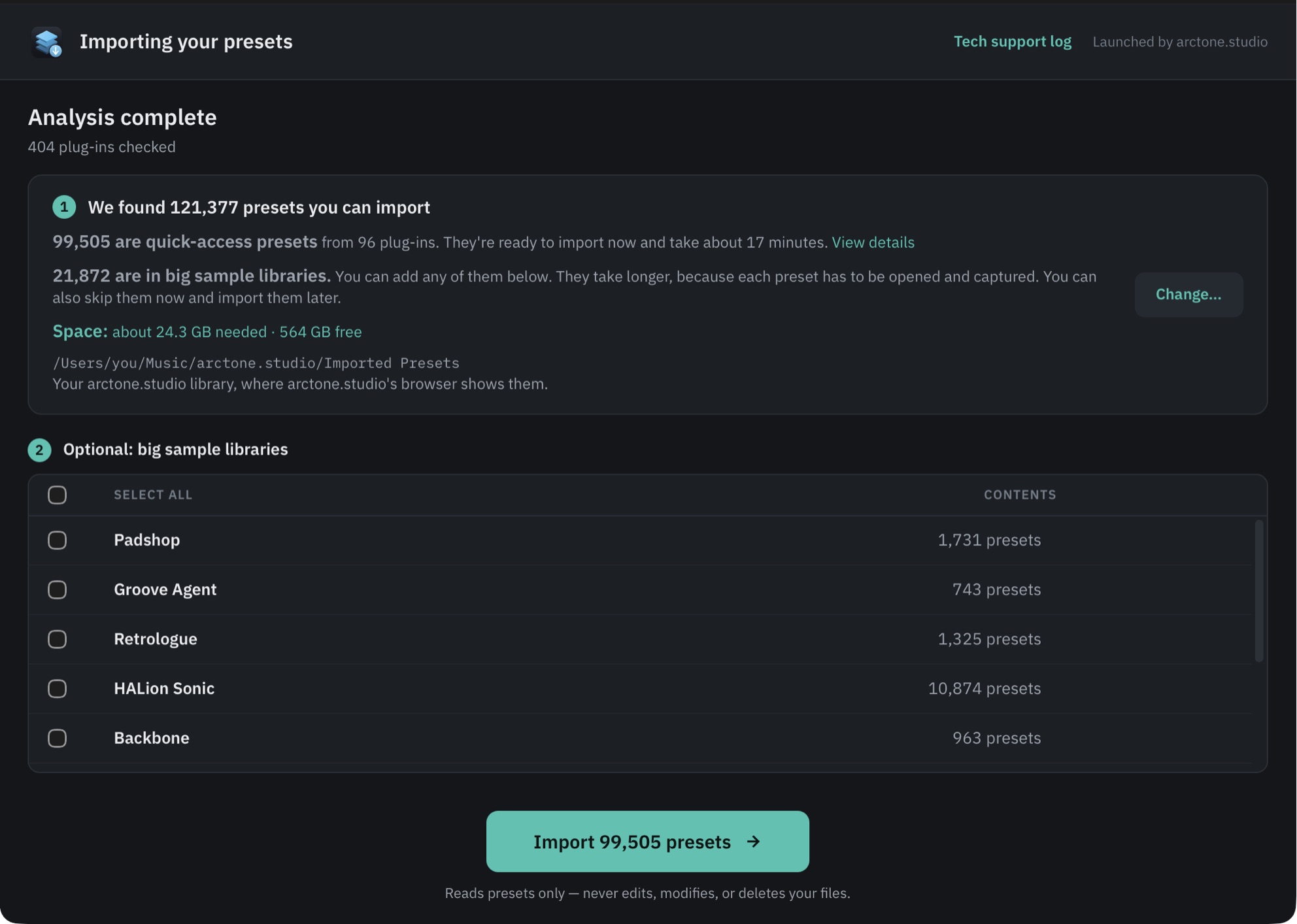
Reads most of your plug-ins’ presets into the Imported Presets library, so they show up in the Browser beside your patches: quick-access presets in minutes, big sample libraries preset by preset.
 123456789101112
Hover a number below to see what each part does.
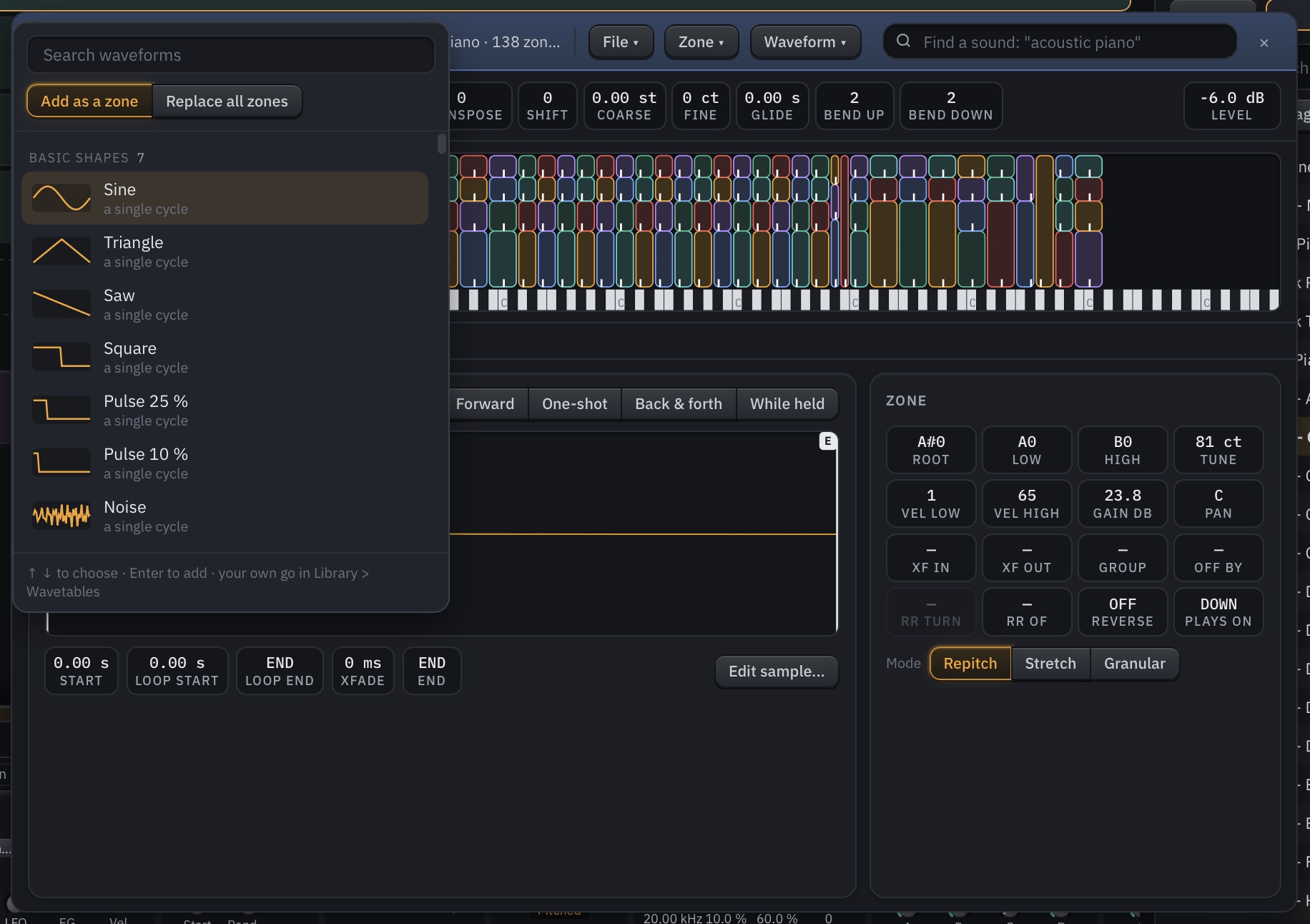
A full sampler with Repitch, Stretch and Granular modes that reads WAV, AIFF, FLAC, SFZ, SF2 and Decent Sampler instruments, plus a Grand Piano, Basic Synth, OB-Xf, four MIDI effects and seven effects.
Freeze anything into the sampler. Drag any preset from the Browser into the arctone.sampler, or freeze a layer straight from the layer itself, and arctone.studio records it as a multisampled instrument, faster than real time: every semitone or every few, up to four velocity layers and four round robins, with loop and release samples. A frozen sound plays without its original plug-in and uses a fraction of the CPU.
 12345678910111213
Hover a number below to see what each part does.
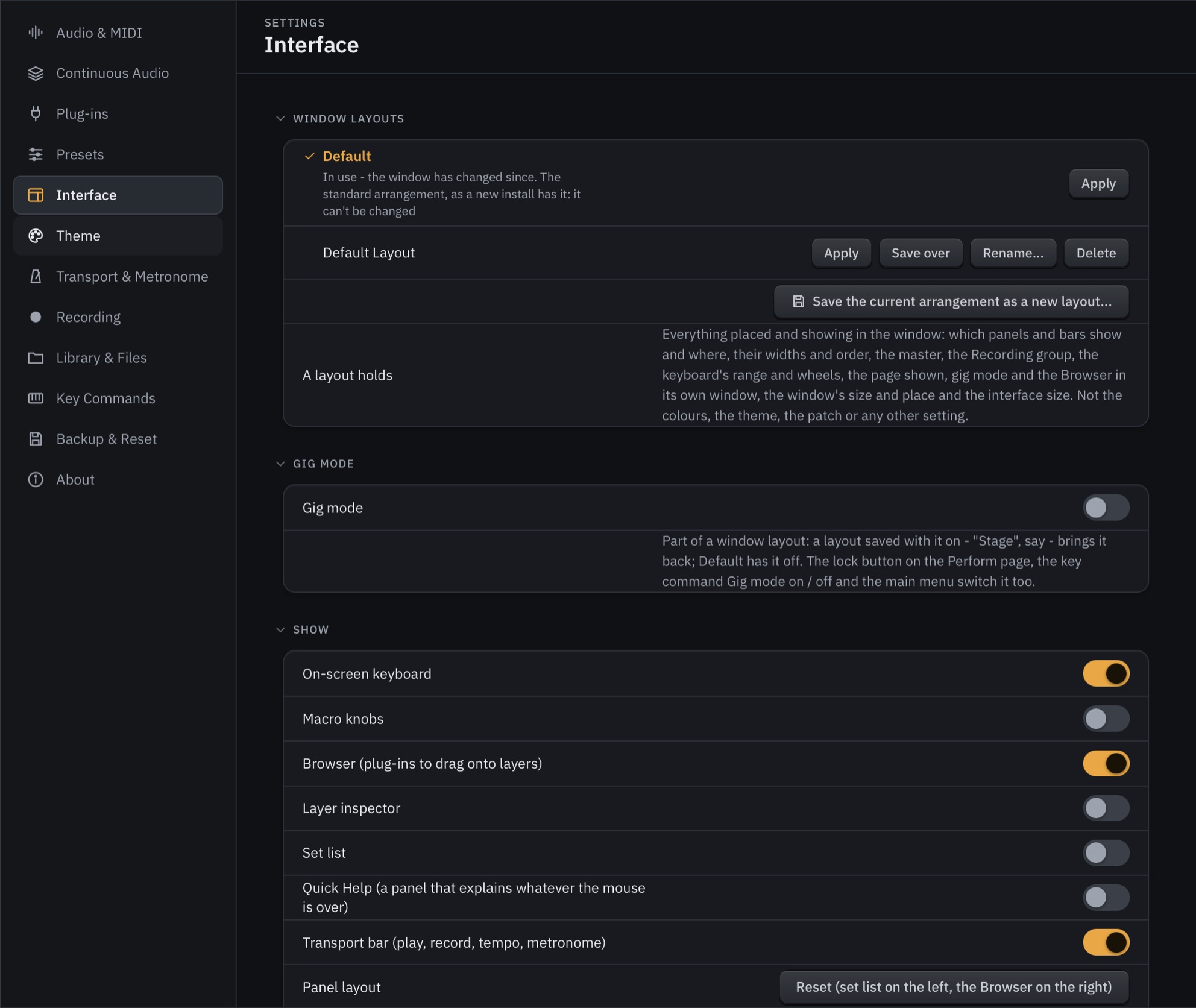
For advanced users, almost everything in arctone.studio can be rearranged and reconfigured. Window layouts start locked so nothing moves by accident; unlock them and you can drag the bars, buttons and panels wherever you want them, and choose with Show which panels, bars and buttons are on screen. When it looks right, open Layout and choose Save as new layout to keep it under its own name: one for building patches, one for the stage, one for the studio. Every saved layout is in the Layout menu, one click away, and the Default layout is always there to go back to.
The Layout menu also zooms the whole window in and out with its Size control: make everything larger to read from across the stage or on a small laptop screen, or smaller to fit more on a big studio monitor. Each layout keeps its own size, so switching layouts brings back the right view for the screen you are on.
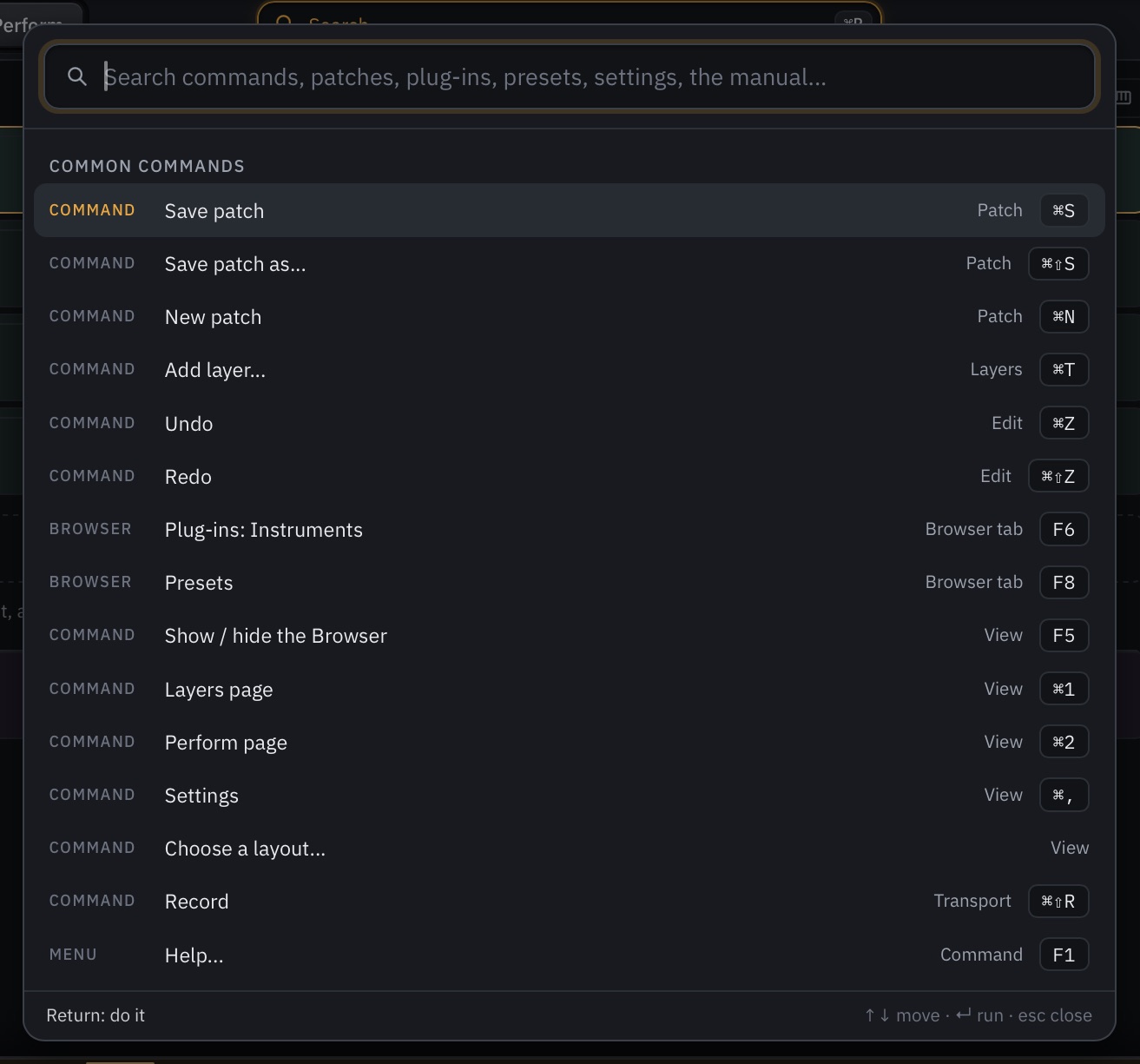
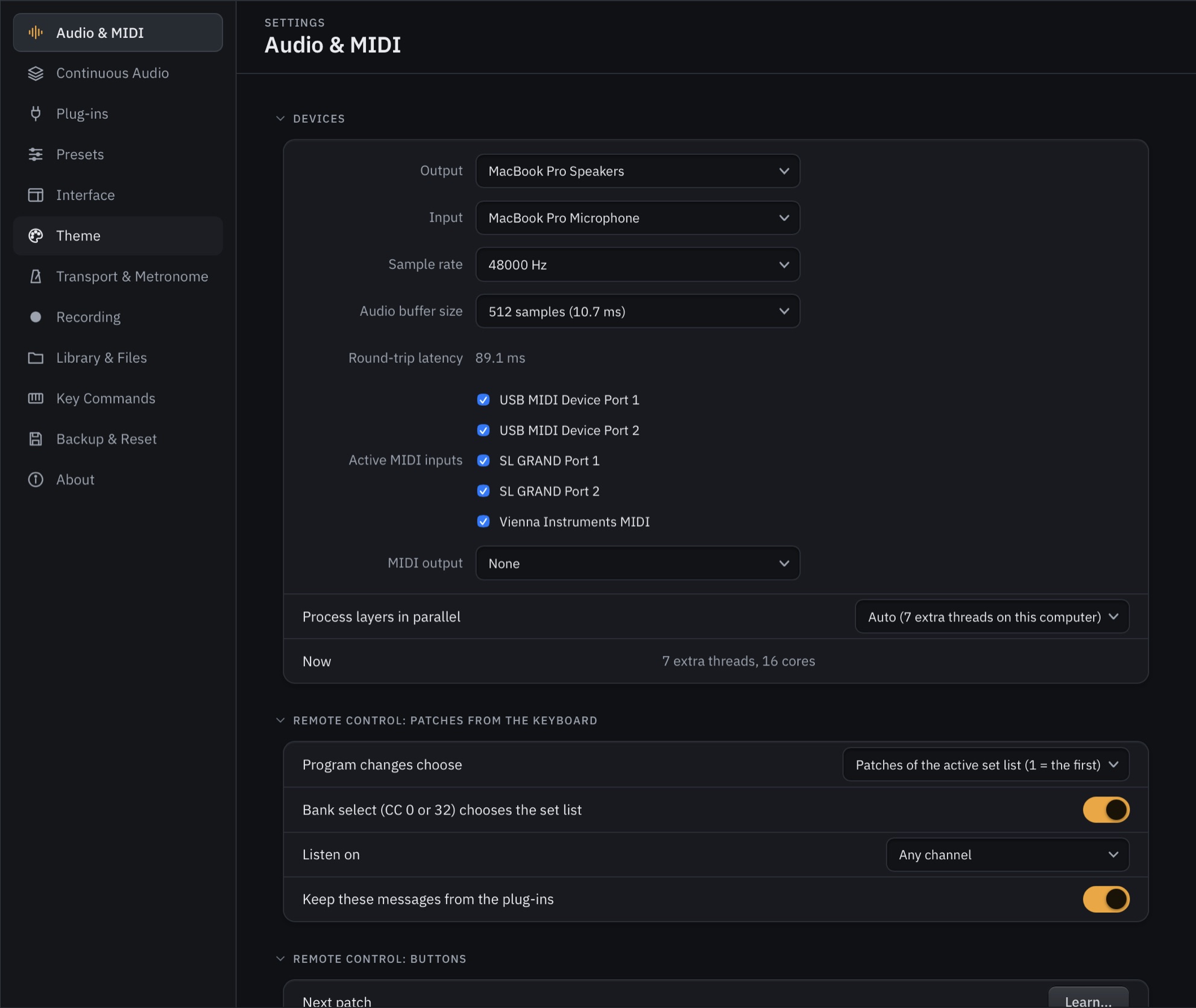
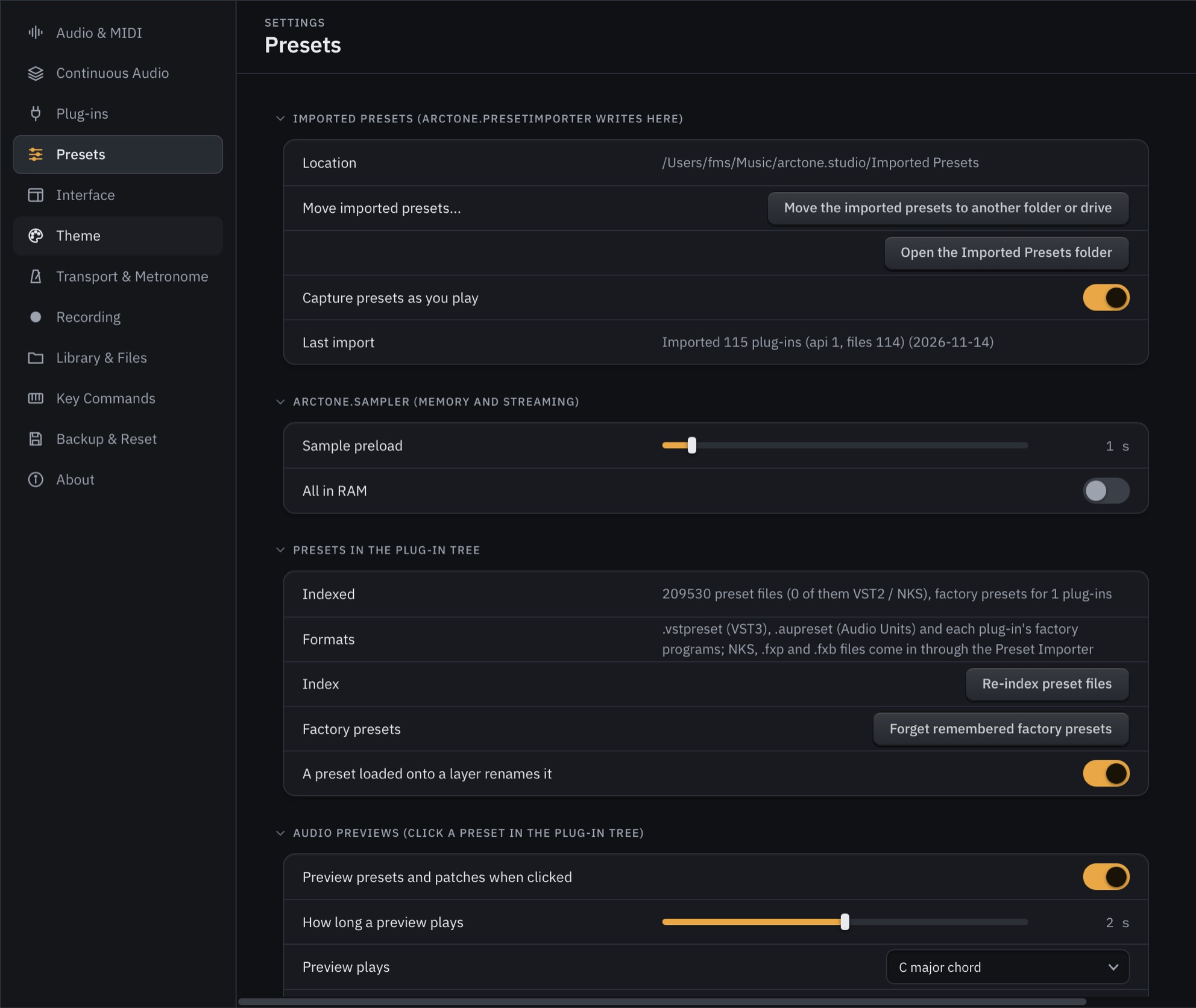
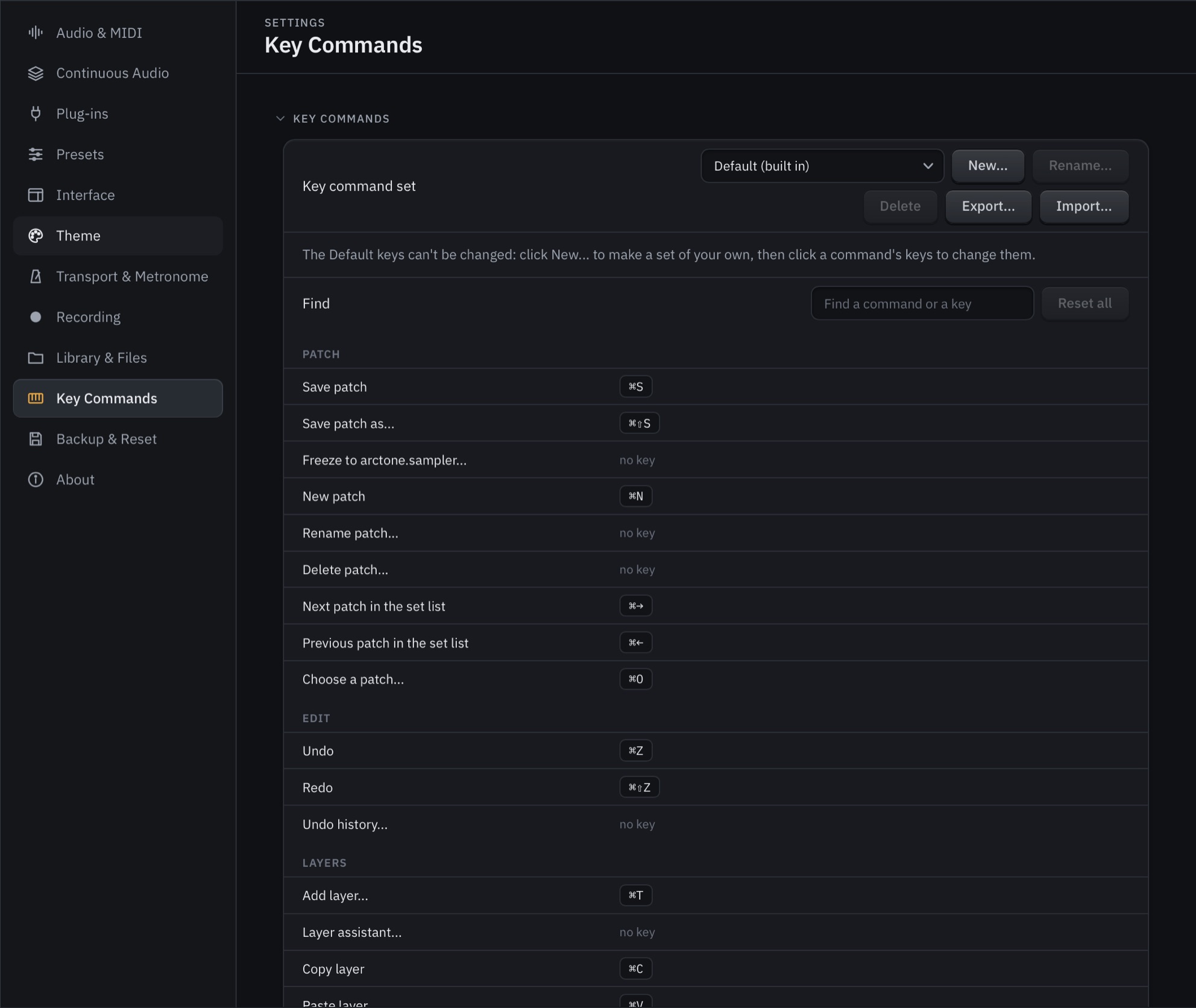
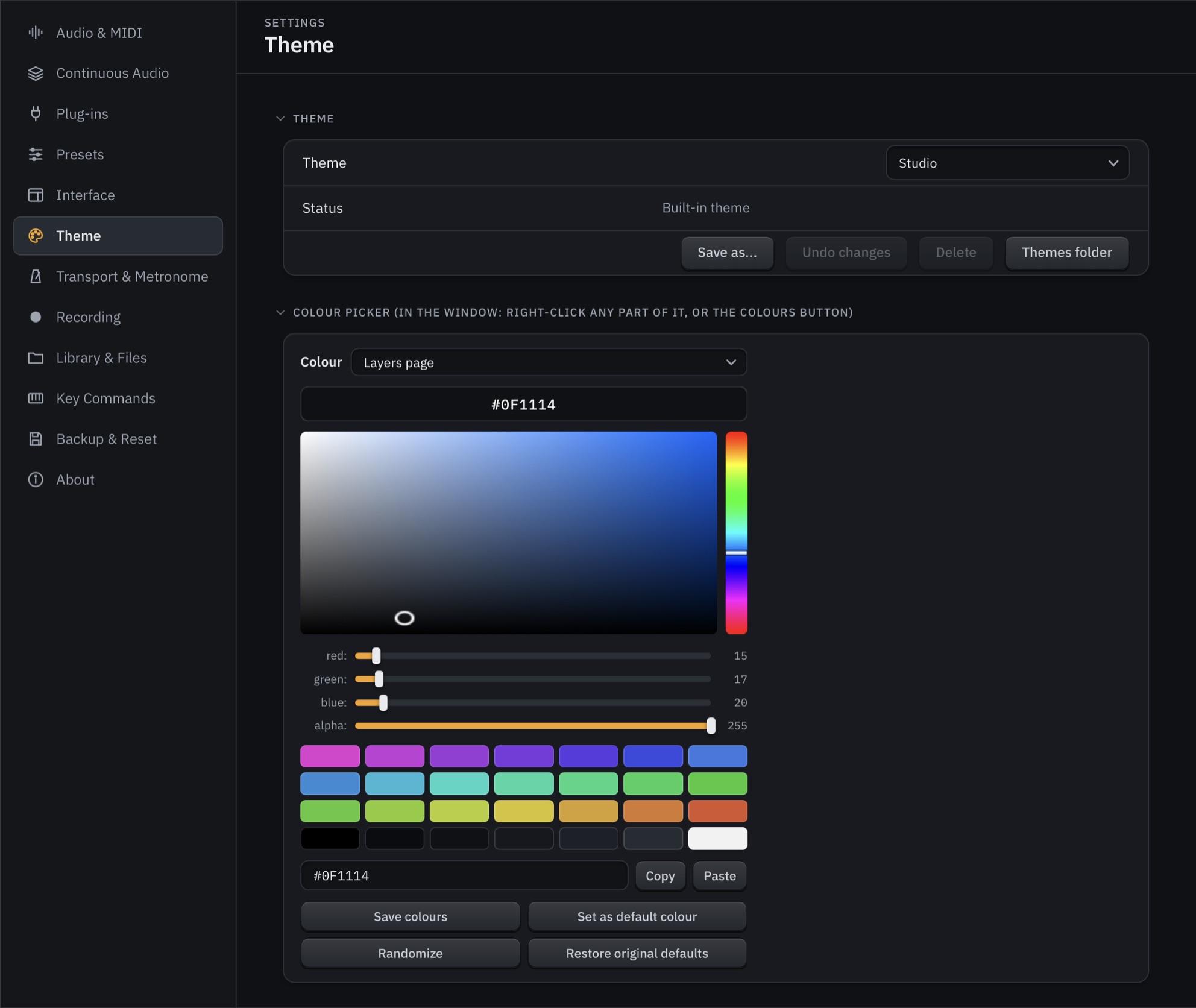
Settings (Cmd+,) opens in the main window with a page for each part of the app: Audio & MIDI (devices, parallel processing, remote control, transpose, OSC and plug-in protection), Continuous Audio, Plug-ins, Presets, Interface, Theme, Transport & Metronome, Recording, Library & Files, Key Commands, and Backup & Reset. Make your own key command sets and export or import them as XML. Pick one of seven themes or build your own from six main colours, put pictures behind seven areas of the window, and share your theme as a file.
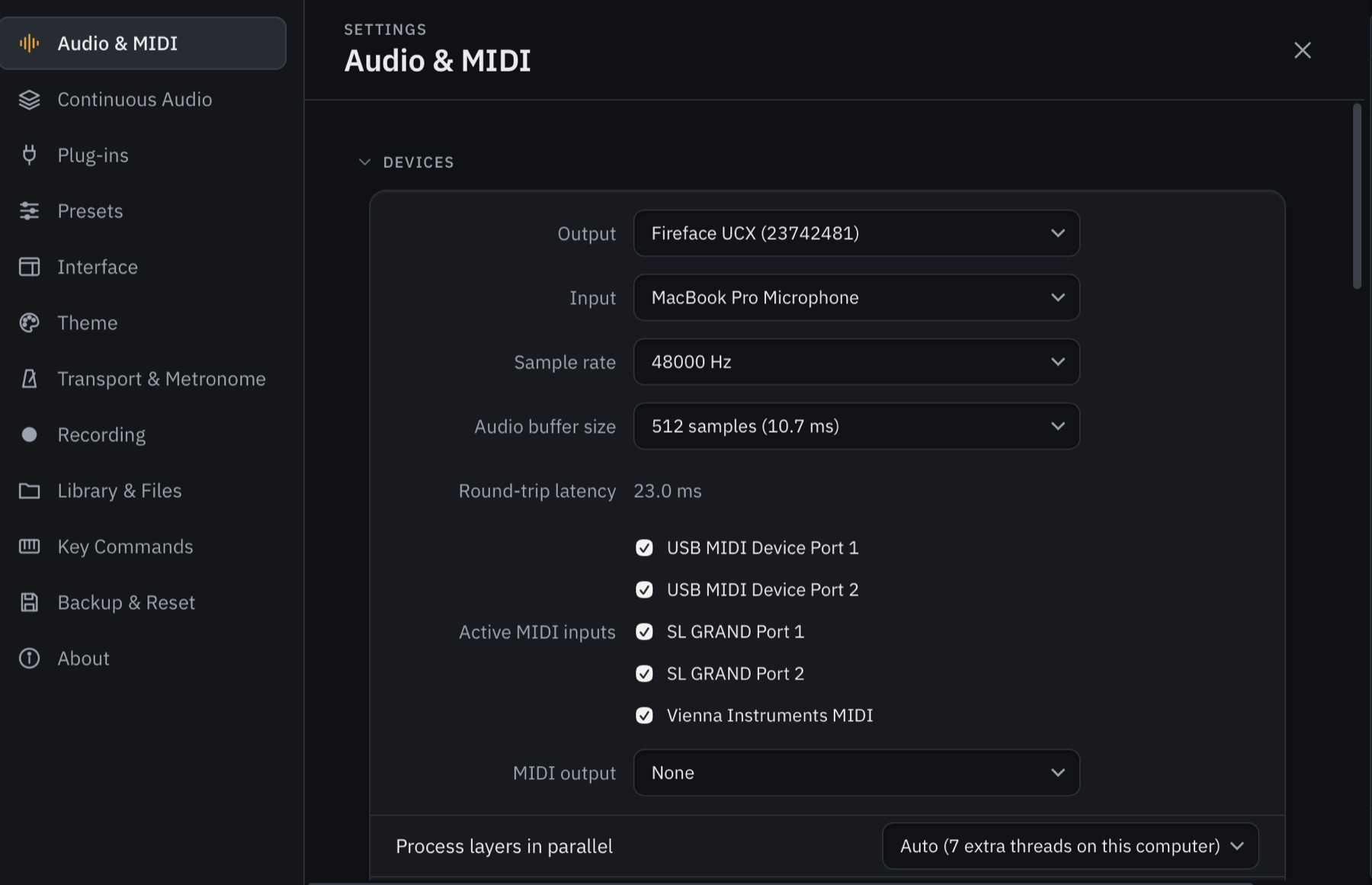
Settings, with a page for each part of the app.
Run any plug-in in a separate helper process. If one stops, only its slot goes quiet, and it reloads in a second or two.
Saved after every change and every 30 seconds. Restore, restore without the plug-in, or start fresh.
Always keeps the last minutes of what you played. Record the mix, stems per layer and the MIDI.
EBU R128 / ITU-R BS.1770 meter on the master with true peak and common streaming targets.
Layers processed in parallel, with output identical sample for sample to single-core processing.
One backup file lists every plug-in used; restore tells you which are missing. Delete never deletes.
Screenshots
Technical specifications
Formats, the engine, routing, modulation, continuous audio, built-in devices, recording, preset verification and plug-in protection. Every figure is in the manual.
| Runs as | Standalone app, VST3 plug-in, and Audio Unit plug-in (Mac). One engine and one set of files for all three: a patch saved in one opens in the others. |
| Hosts | VST3, Audio Unit (Mac) and VST2. VST2 through a clean-room interface description (vst2sdk, BSD), not Steinberg's SDK. |
| macOS | macOS 11 Big Sur or later, Apple Silicon or Intel. Needs Safari 16.2 or newer: the window is drawn by the system's WebKit. Signed, notarised, hardened runtime. |
| Windows | Windows 10 (1809 or later) or 11, 64-bit, with the Microsoft Edge WebView2 Runtime (added by the installer if missing). Standalone and VST3. |
| Plug-ins that can't load | On Apple Silicon, Intel-only and 32-bit plug-ins. Only native VST2 builds load. |
| Window | At least 1000 x 660 at 100%. Interface size 75, 80, 90, 100, 110, 125, 150, 175 or 200%, redrawn sharp. |
| Licence | $199, one payment. Up to three computers. Internet needed once to activate, then works offline. A free 14-day trial of the whole app, with no sign-up, email or card. |
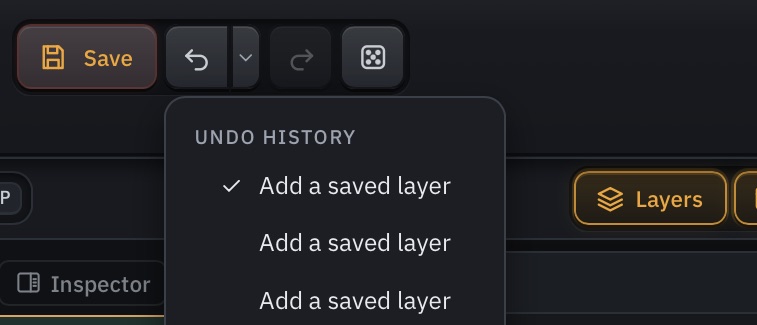
| Top bar | Previous and Next, the patch's picture, name and notes (author and library under them), Save, Undo with its history, Redo, the dice (three layers that go with the first), and the master meter and fader. |
| View bar | ≡ main menu, Messages, Show, Set list, Perform, the search box (command palette, Cmd+P), Layers, Browser, Preset map and Preset Importer; Layout and Plug-in Manager buttons when switched on in Show. |
| Transport bar | Panic, Play, back to start, Rec, Capture, Take, TIME, BAR · BEAT, TEMPO, METER, CLOCK, Metronome, CLICK, TRANSPOSE, then PLAYING (chord, MIDI in) and STATUS (audio, CPU and disk, ring-outs). |
| Patch picker | Cmd+O: search, Locate in Browser, the set list, recent patches and the library by category, each with a ▶ to hear it first. |
| Messages | Kept between sessions (the last 200), this session's and the previous one's, with Mark all read and Clear. |
| Window layouts | Locked to start with; unlock to drag bars, buttons and panels. Whole arrangements saved by name, Default built in. |
| Getting started | Five first steps that tick themselves off; a welcome card and a four-step tour at the first start. |


| Multi-core | Process layers in parallel: each layer's MIDI effects, instrument, effects and fader on its own thread, summed in order. Auto uses all cores but two (one for audio, one for the window). The output is sample-for-sample identical with it on or off. |
| Patch switching | Each patch is an engine of its own. A new patch is built off the audio thread and published with one atomic pointer store; the audio thread picks it up with one atomic exchange per block. |
| Audio-thread rules | The audio thread never takes the patch lock, never waits for an edit and never allocates. Old engines go back through a fixed-size lock-free queue and are destroyed on the message thread. |
| Undo | Up to 200 steps per patch, with a history to jump through. Undo never interrupts the audio: surviving plug-ins keep sounding. |
| Latency | No plug-in delay compensation between layers. The arctone.sampler's Stretch mode adds about 50 ms; Buffered sandboxing adds one block. |
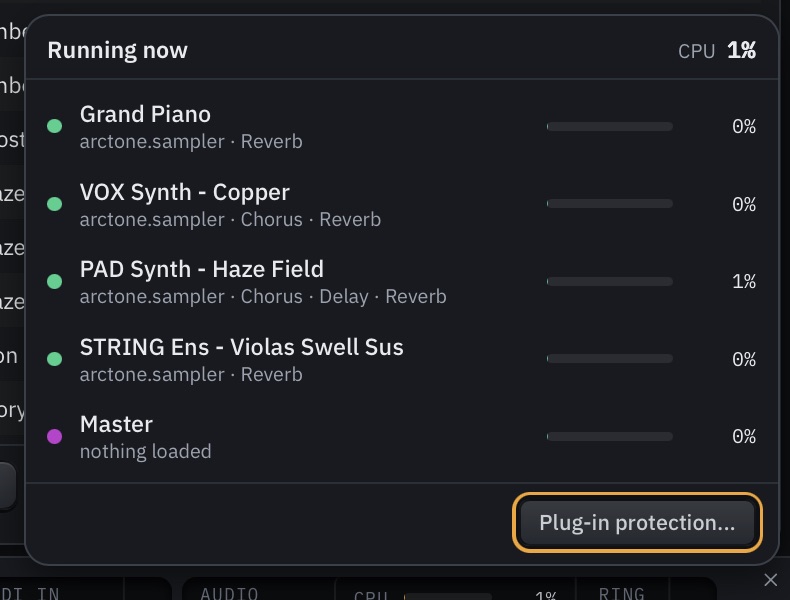
| Metering | CPU per layer, including helper-process cost and missed blocks; Running now lists each layer's share. Disk activity on a log scale. |
| Layer types | Instrument, MIDI, Audio (input), Aux (send/return), Master. |
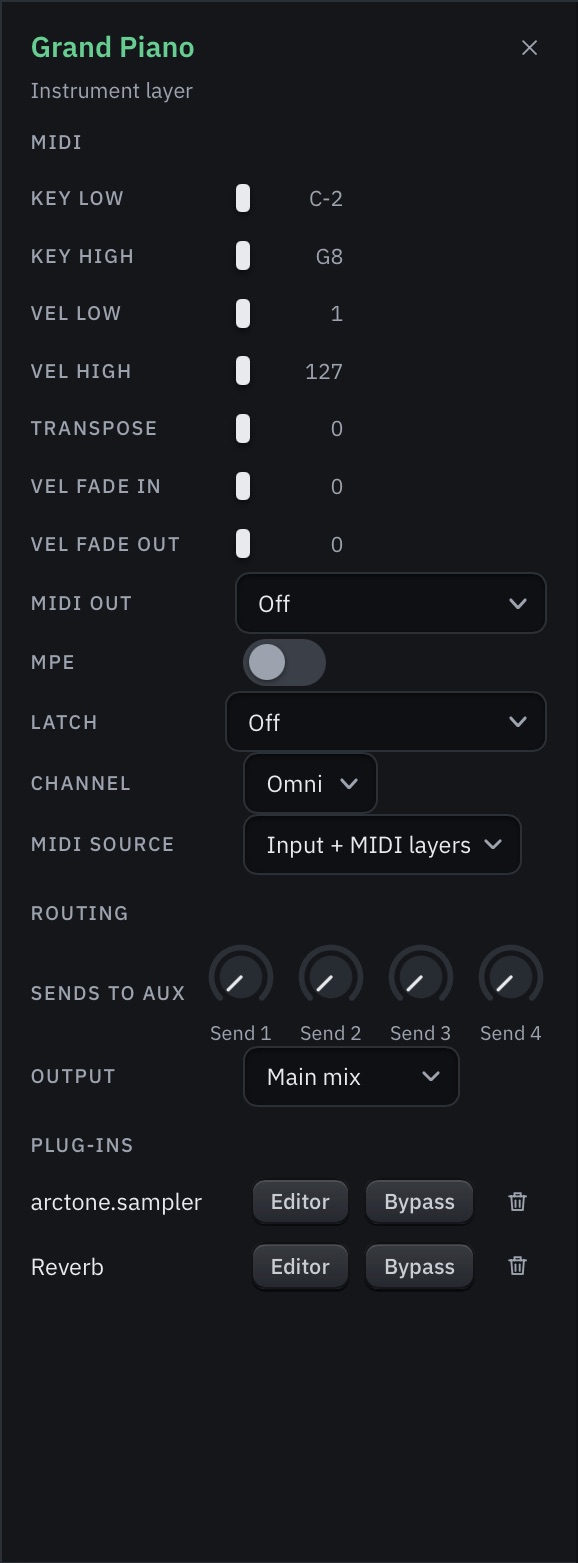
| Per layer | MIDI filter, MIDI effects, one instrument, insert effects, fader, pan, four post-fader sends, output Main or Out 2 to 8. |
| Key and velocity | Key range editor with Learn; velocity range 1-127; velocity crossfades; velocity curves from presets (Linear, Soft, Softer, Hard, Harder, Compressed, Expanded, S-curve, Fixed) or drawn. |
| MIDI per layer | Channel Omni or 1-16, transpose, Latch OFF / MONO / POLY, and pitch bend, mod wheel, aftertouch, expression, sustain and CCs switched individually - cells on the unfolded layer. |
| MPE | Channel 1 manager with 15 member channels; per-note pitch bend, pressure and slide (CC 74). Poly aftertouch passes without MPE. |
| MIDI out | Off, as played, or on channel 1-16, after filters and MIDI effects; to hardware or a virtual port, or the plug-in's MIDI out in a DAW. Note-offs are sent on every switch, so no note hangs. |
| Polyphony expander | 2 to 8 copies of a monophonic plug-in, round-robin with oldest-note stealing. |
| Duplicate several | 3, 7 or 15 copies of a layer at once. |
| MIDI clips | .mid and .midi up to 1 MB, stored inside the patch, follow the clock (20-300 bpm) and the DAW's transport. |
| Global transpose | -48 to +48 semitones; held notes keep their pitch. |

| What it shows | The selected layer's chain in signal order - MIDI effects, instrument, effects - with the patch's macros and modulators at its left; the master's inserts when the master is selected. MIDI and Audio tabs beside Devices hold the layer's clip and audio. |
| Devices | arctone.studio's own devices drawn with their controls by section; other plug-ins as a card with remote controls or every parameter with a search. |
| Chains | Save chain, Add chain and Replace chain: a layer's effects saved and loaded with their settings. |
| Item help | Show Item Help (or F1) on any device or modulator: drawn large, a note on every control with its range and what it does; the controls stay live. |
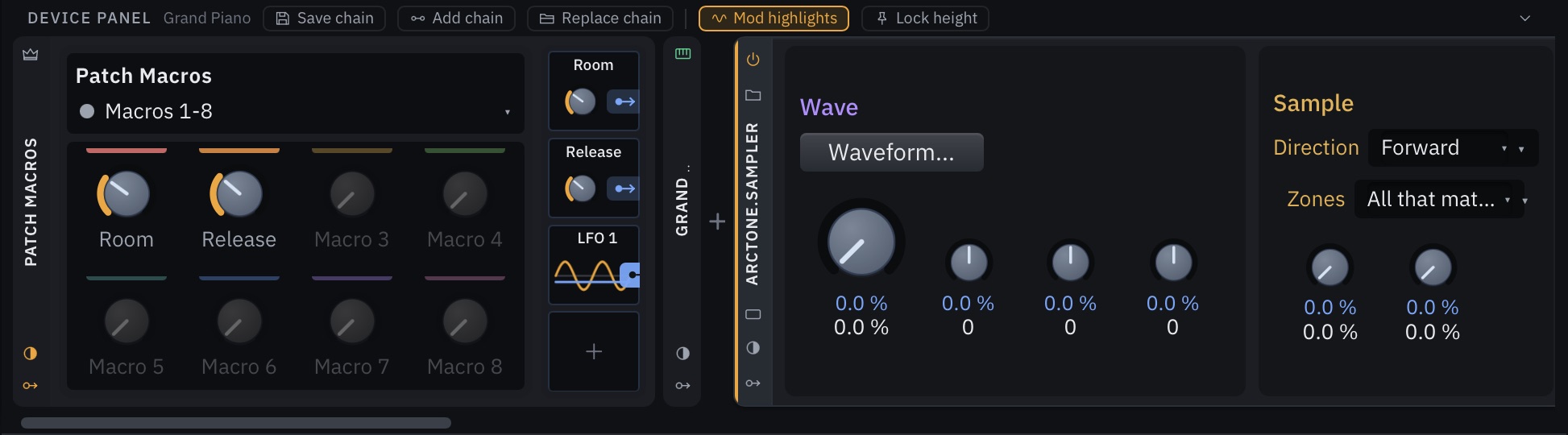
| Mod highlights | Lights what the selected modulator moves and draws a line to it. |
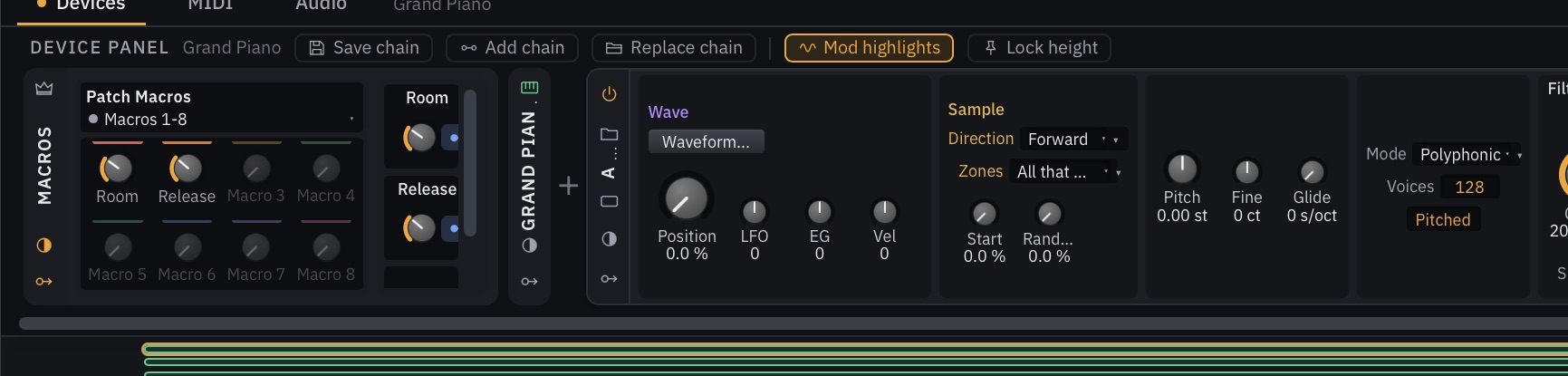
| Macros | 32 per patch in Patch Macros, eight to a page; each a named DAW automation lane (macro1-32), MIDI CC or aftertouch learn, OSC address /arctone/macro/1-32. Move to gives a macro another number; DAW automation stays with the number. |
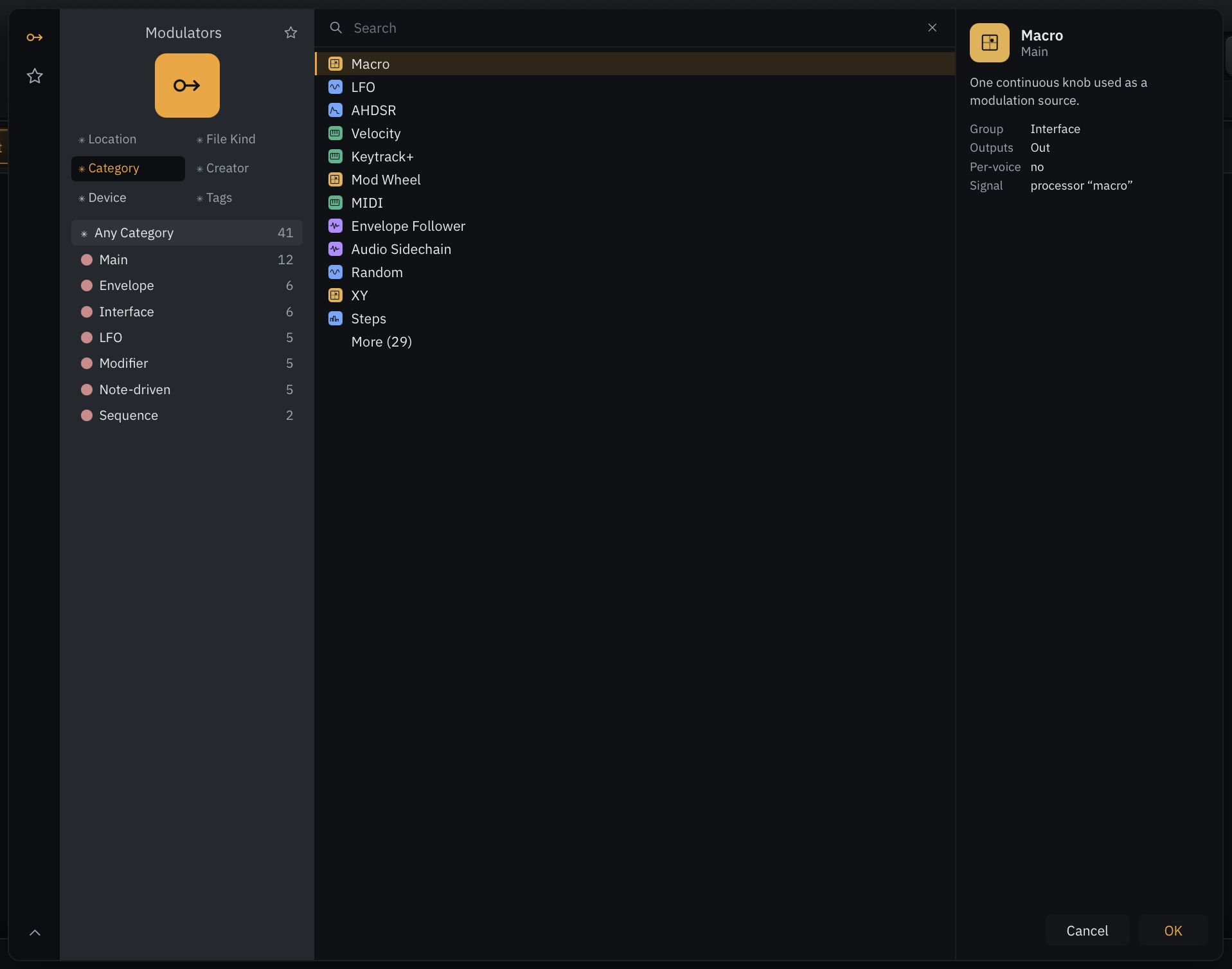
| Modulators | 41 kinds, on a device, a layer or the patch, with Per-Voice mode; chosen by category from the + in a modulator column. |
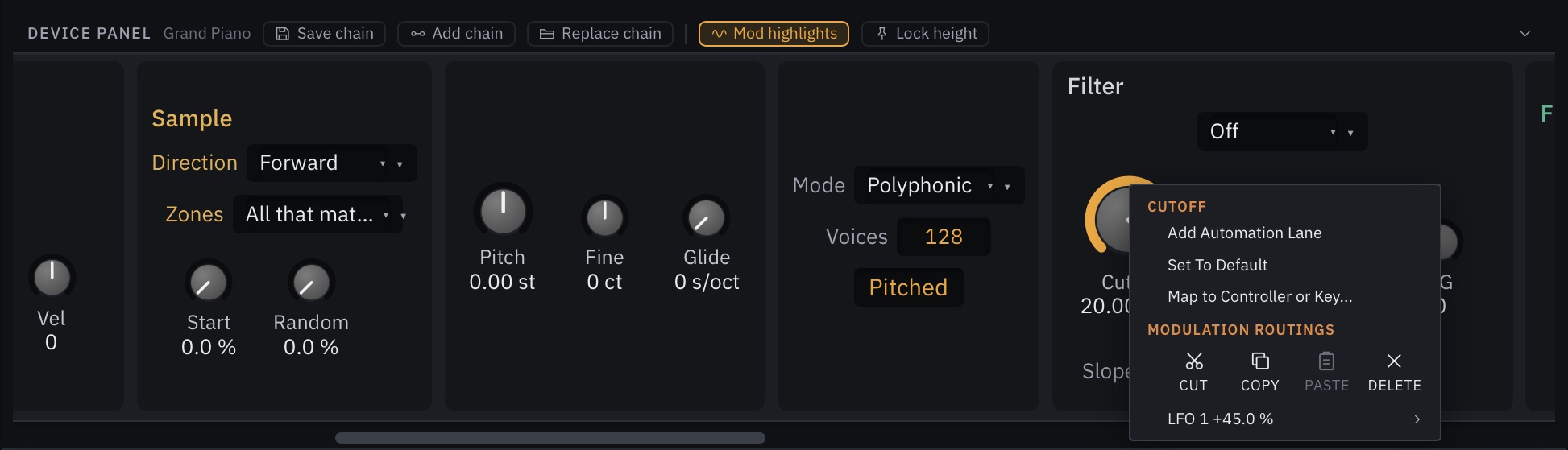
| Routing | A modulator's routing button turns every reachable knob into a target: drag for the amount (minus to plus). Right-click the button for its targets. |
| Per routing | Transfer (Linear, Positives, Negatives, Absolute, Toward Zero, Exponential, Logarithmic), Slew (Off, 5 to 250 ms), Scale by another modulator, Active, Remove. |
| A knob's menu | Add Automation Lane, Set To Default, Map to Controller or Key..., Mappings, and Cut, Copy, Paste, Delete for all of its modulation routings. |
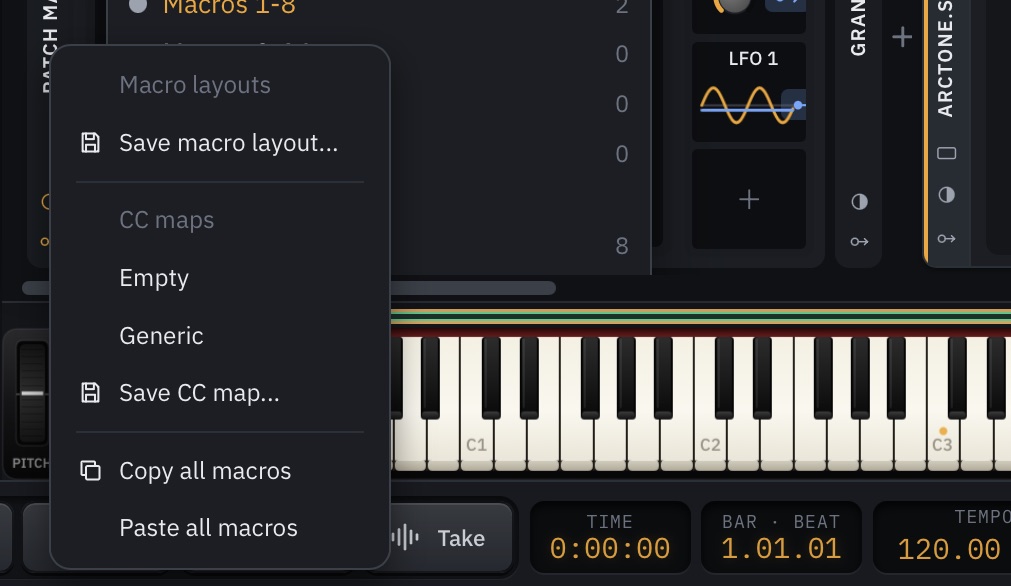
| Layouts and maps | Macro layouts (all 32) and CC maps per controller (Generic and Empty built in), and Copy / Paste all macros, from the PATCH MACROS strip; one undo step each. |
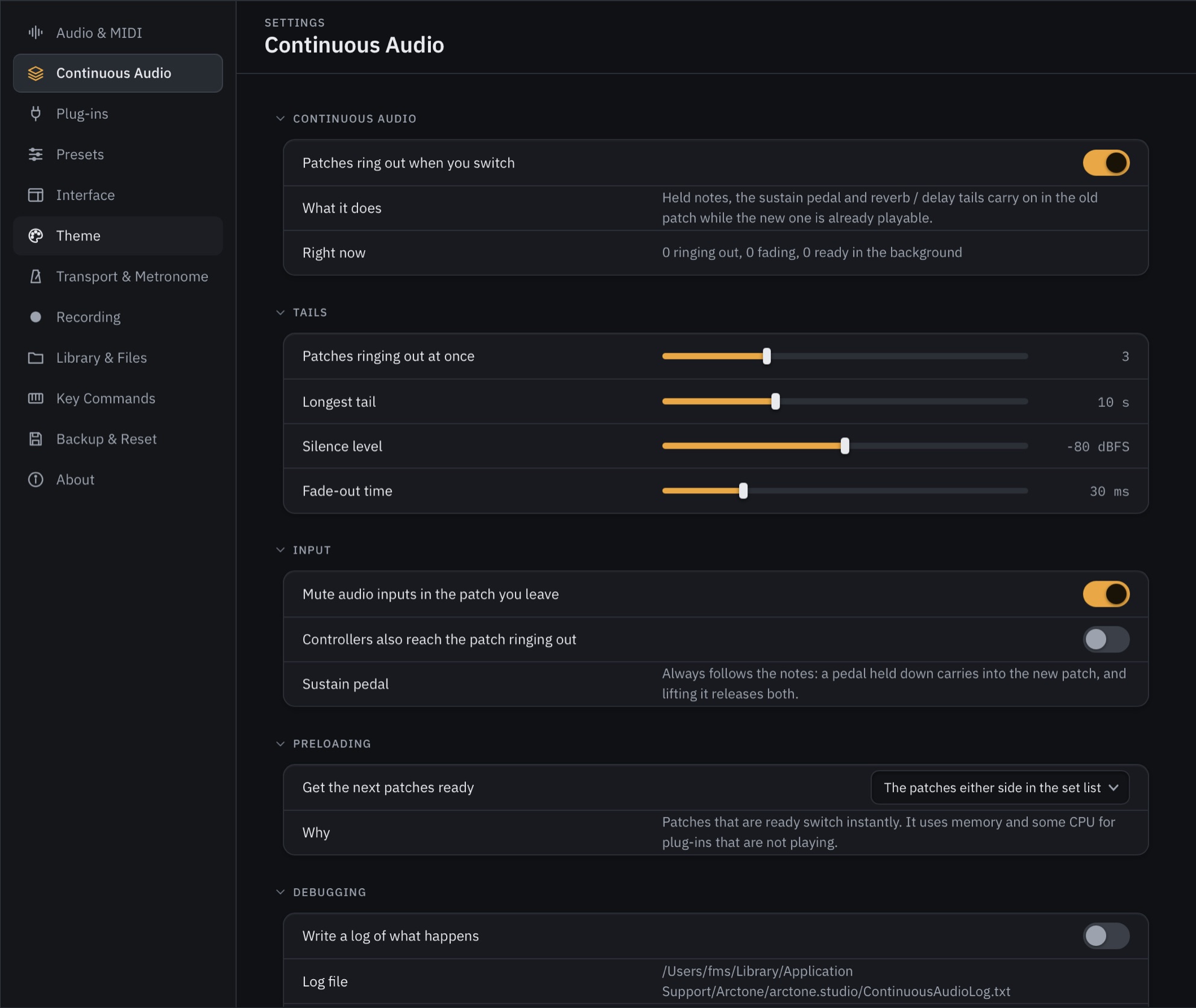
| Ringing out at once | 1 to 8 outgoing patches (3 by default); the oldest fades first. |
| Silence level | -80 dBFS by default, held for about a third of a second. |
| Longest tail | 10 seconds by default, then faded. |
| Fade | About 30 ms by default, linear. Never a hard cut. |
| Note-offs | Go to the patch that received the note-on, however many switches ago. Sustain (CC 64) and sostenuto (CC 66) reach every patch still holding notes. |
| Per patch | Follow the global setting, Always ring out, or Never ring out - in the patch's menu, This patch when you switch away. |
| Preloading | Off, the patches either side in the set list (default), or the whole set list: up to eight patches, nearest first. Uses memory, not CPU. |
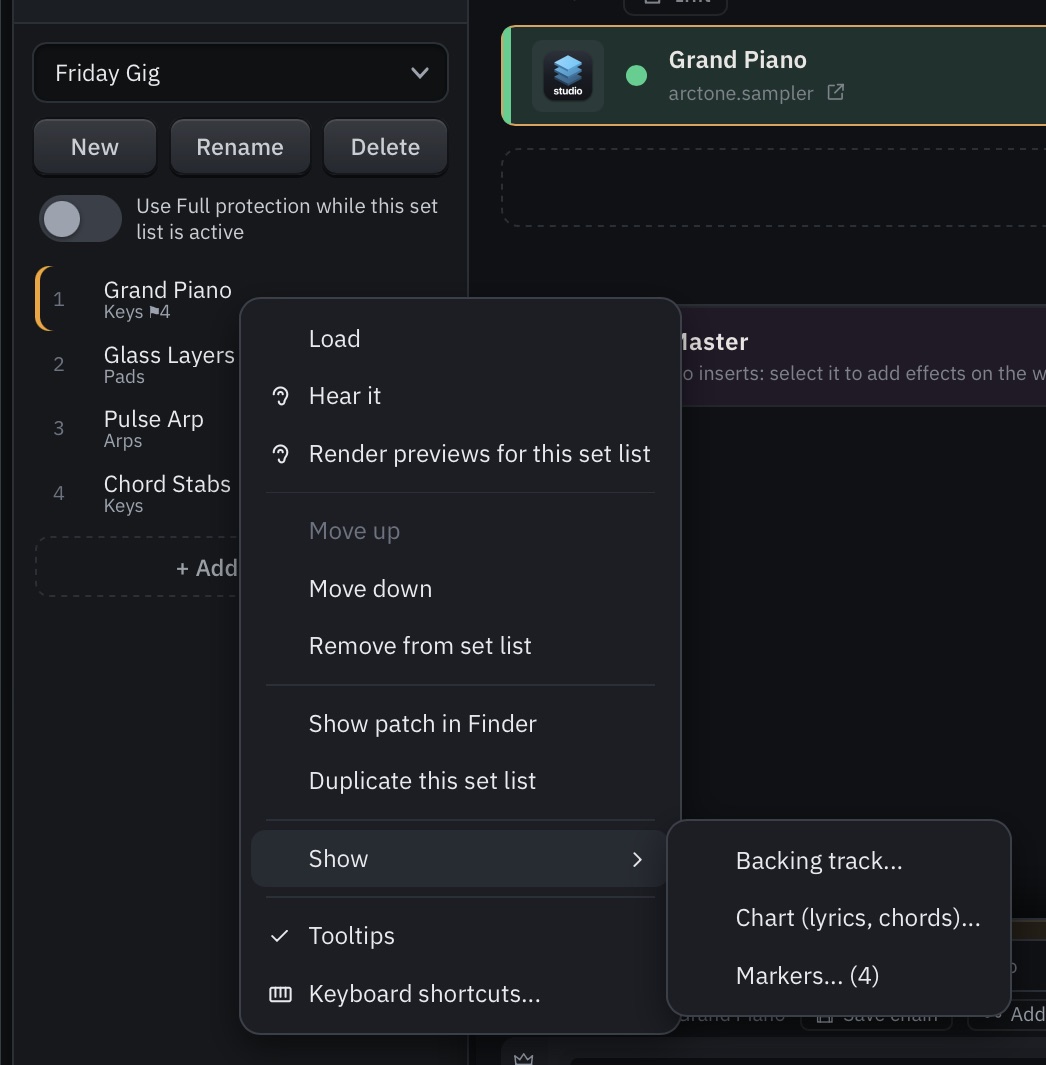
| Set lists | .assetlist files with relative paths; moved or renamed patches relink by name and category. + Add patch: the current patch, Choose patches..., or the Browser. Atomic writes. |
| A song's menu | Load, Hear it, Render previews for this set list, Move up, Move down, Remove from set list, Show patch in Finder, Duplicate this set list, Show. |
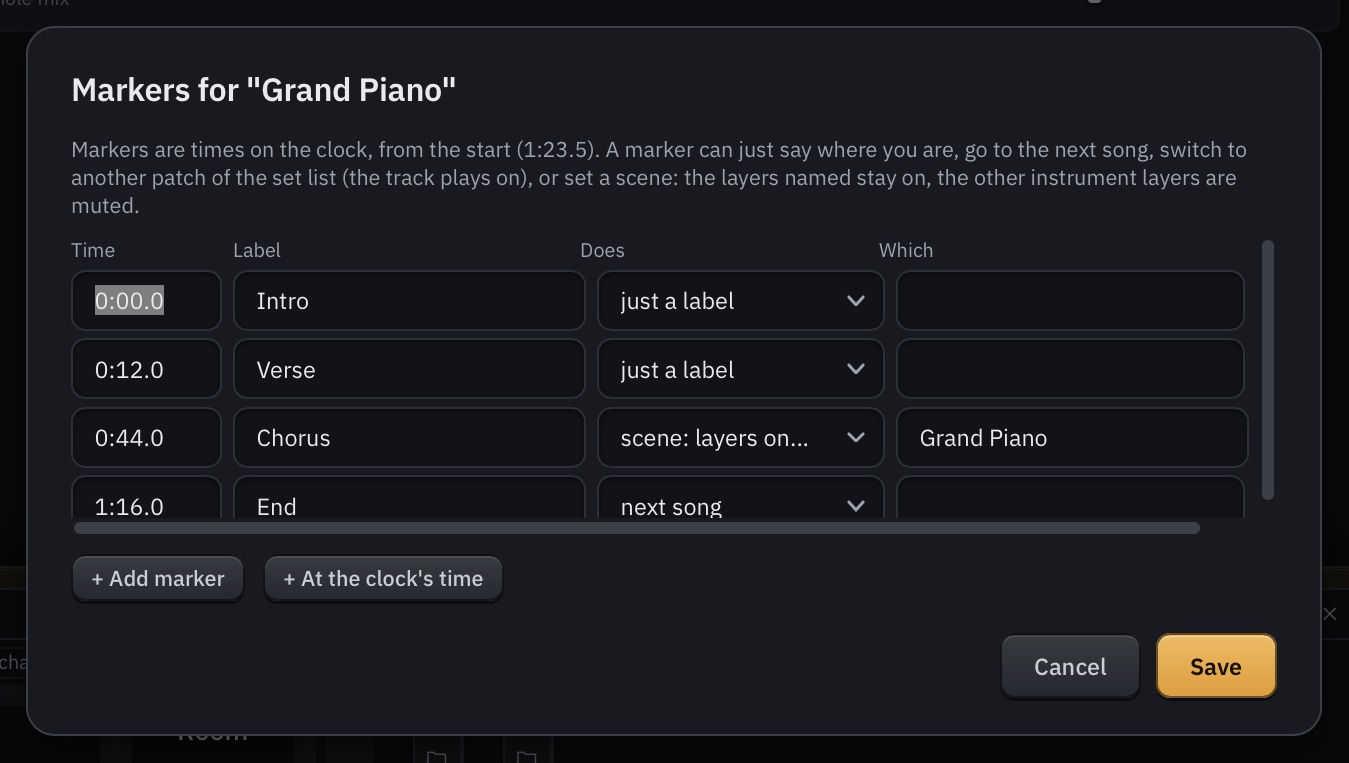
| Show mode | Backing tracks in WAV, AIFF, FLAC, OGG or MP3 with their own level; charts; markers that say where you are or fire the next song, a patch or a scene (layers on). |
| Footswitches | Four per set list: next song, previous song, play/stop, and one assignable (next cue, tap tempo, panic or a macro). |
| MIDI remote | Program change picks patches; bank select (CC 0 or 32) picks the set list. Footswitch, pad or key buttons count as on at 64 or above. Works with the window closed and in a DAW. |
| OSC | Port 8000 by default, with feedback to a host and port you set: /arctone/patch/next, previous, program, name; /arctone/setlist; /arctone/macro/N; /arctone/layer/N/volume, mute, solo; /arctone/transpose; /arctone/transport/play, stop, tempo; /arctone/panic; /arctone/capture; /arctone/protection. |
| Gig mode | Locks the Perform page's edits and menus. CPU warning in amber over 80% for 2 s and red over 95%. Stops scans, preset-map rendering and analysis. |
| Perform page | 16 macros with set-list tiles, 32 without; the song, cue line, chart and notes; time of day, set time and time to curfew; PANIC, Play, Click, Tap and the footswitch legend. |
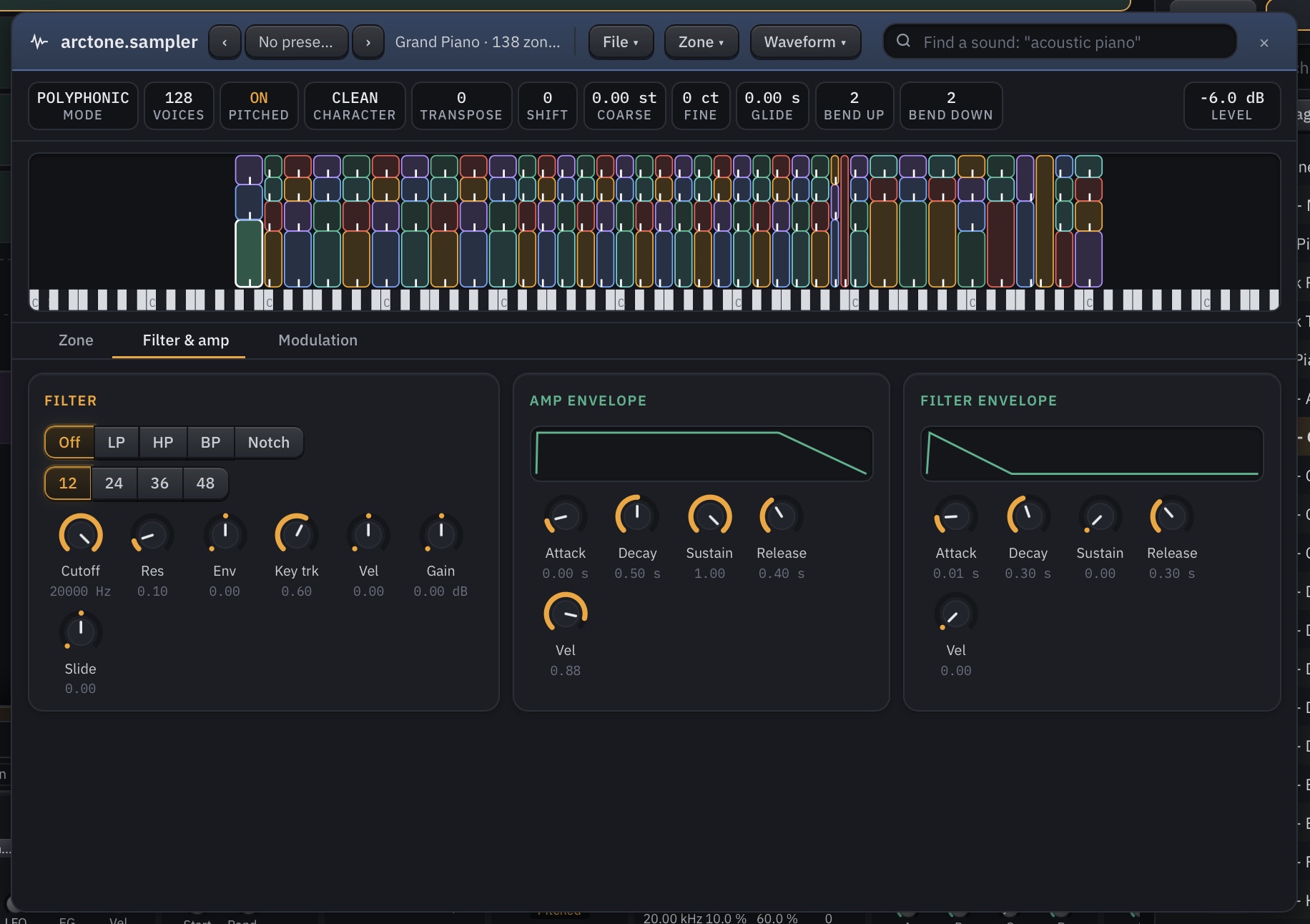
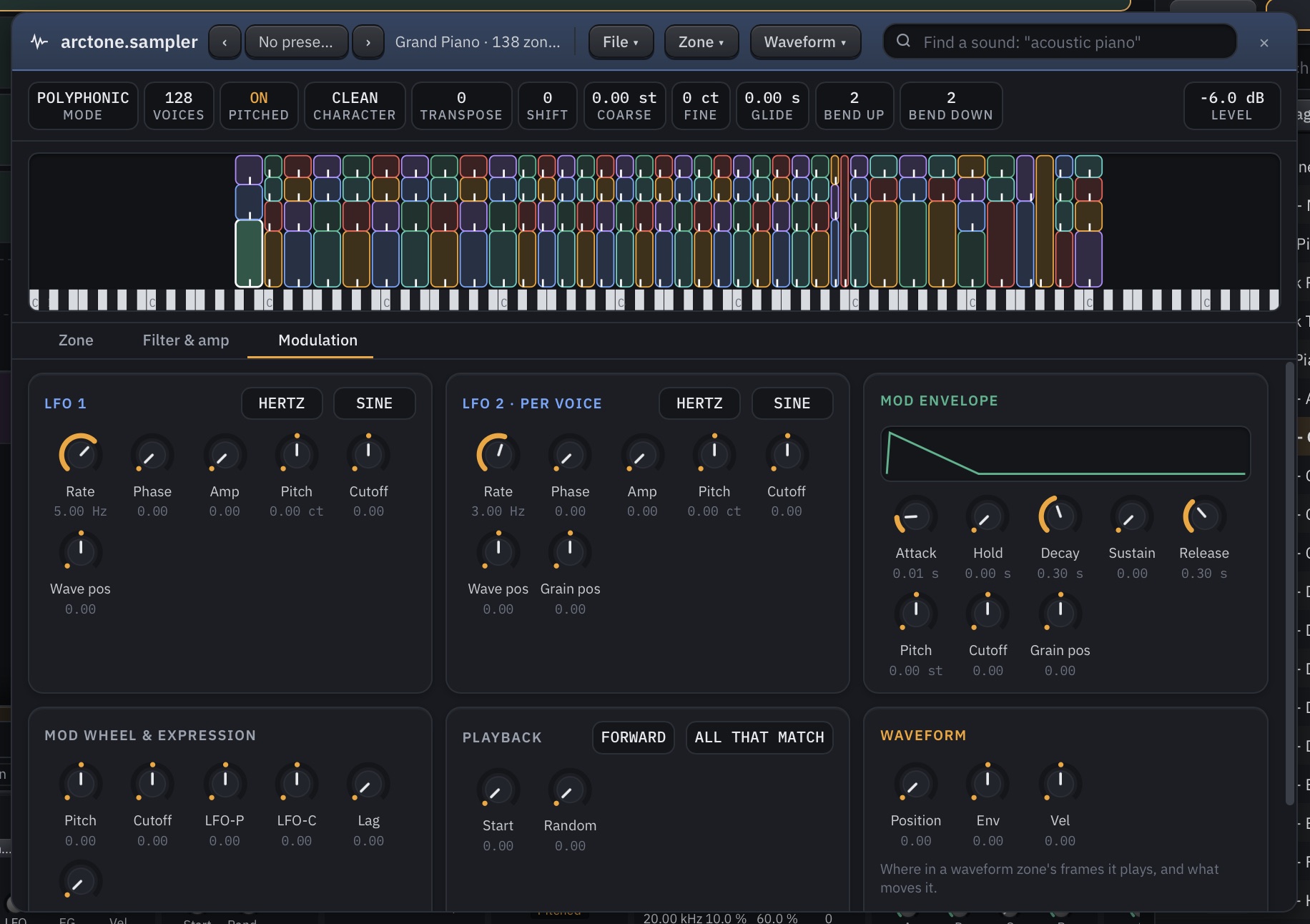
| arctone.sampler | Any number of zones, 1-128 voices (64 to start with). Repitch (4-point Hermite), Stretch (Signalsmith Stretch, formant keep or shift) and Granular (size, density, spray, position, pan, pitch, freeze). |
| Its window | Zone, Filter & amp, Modulation and Grains tabs; the zone map; File menu (New, Open, Save, Save as, Add samples, Import a folder, Import an instrument, Export as SFZ); zone menu (Edit sample, Slice into zones, Make a wavetable, Duplicate, Remove, Auto-map). |
| Input | WAV, AIFF, FLAC, OGG, MP3, folders (auto-mapped), SFZ (with round robins, crossfades, release triggers and keyswitches), SF2 and Decent Sampler (.dspreset). Exports SFZ. |
| Sound | Filter low-, high-, band-pass or notch at 12-48 dB/oct per voice; two LFOs, filter and mod envelopes; pitch bend 0-48 semitones each way; Clean, Vintage 12-bit (26 kHz) or Drive; up to 256 wavetable frames from a sample. |
| Memory | Each sample loaded once for the whole program; 16-bit stays 16-bit. Samples longer than the Sample preload (1 s, 0.2-10 s) and over 8 MB stream from disk, or keep All in RAM. |
| Grand Piano | "K" from VCSL Keys by Versilian Studios, CC0. A0 to C8, up to four velocity layers, about 170 MB in memory. |
| Basic Synth | Two anti-aliased oscillators, sub, noise, unison up to four voices, state-variable filter, LFO, mono with glide. |
| OB-Xf | The Surge Synth Team's Oberheim-style synth (GPL 3.0), installed in a private folder, so your DAW's plug-in list is unchanged. |
| MIDI effects | Arpeggiator (9 modes, 1-4 octaves, 8-step rhythm), Step Sequencer (16 steps, chance 0-100%), Chord (up to four intervals, 11 chord types, strum), NoteMate. |
| Effects | Reverb (pre-delay to 200 ms, freeze), Delay (ping-pong, tape wobble), Filter (12 or 24 dB/oct, envelope follower), Chorus / flanger / ensemble, Compressor (parallel mix, sidechain low cut), EQ (4 bands, ±24 dB), Utility. |
| Freeze to arctone.sampler | Every semitone or every few (3 by default), 1-4 velocity layers, 1-4 round robins, loop and release samples. Rendered faster than real time. |
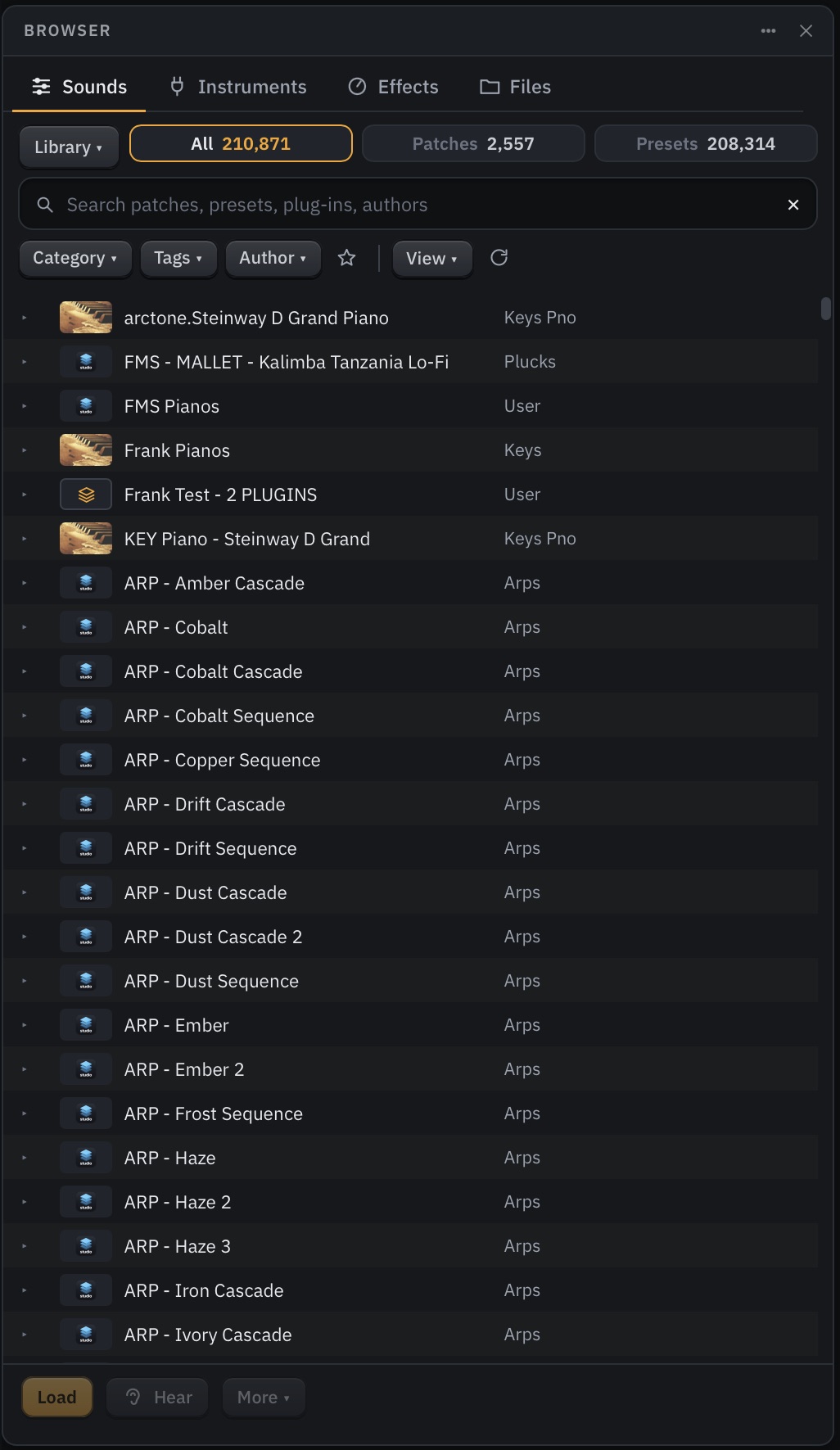
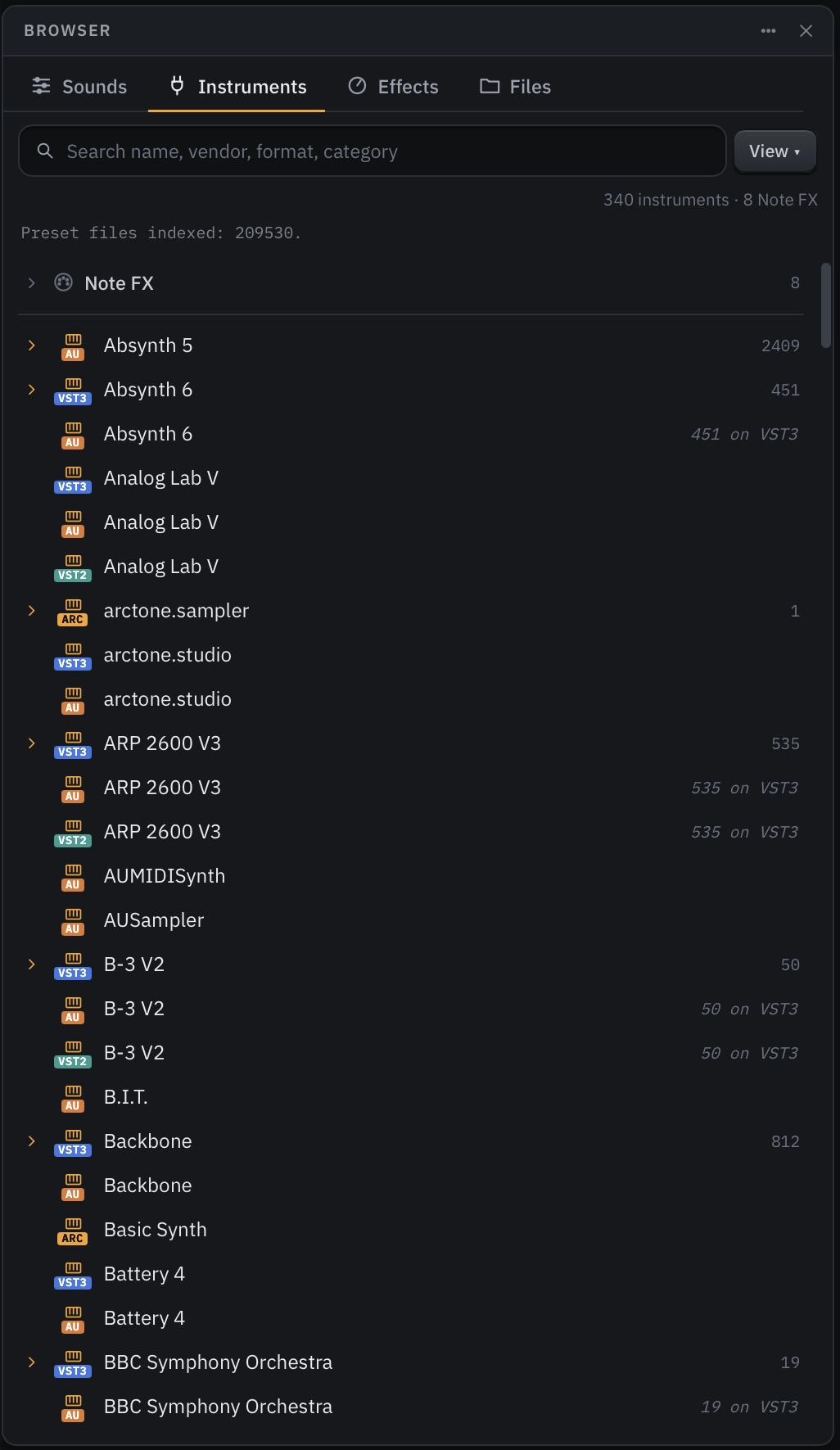
| Tabs | Sounds (patches and plug-in presets), Instruments, Effects and Files; docked at the right or in a window of its own. |
| Filters | Library, Category, Tags and Author, favourites, View (sort, List or Grid, pictures) and Refresh. |
| Preset map | Every measured preset placed by sound, in four views: Areas, Wheel, Cloud and Galaxy 3D; hover to hear, click to load. |
| Plug-in Manager | Plug-ins, Archive, Blocklist, Statistics and Formats & Folders tabs; Take pictures of all plug-ins, Scan for new plug-ins, Rescan all. |
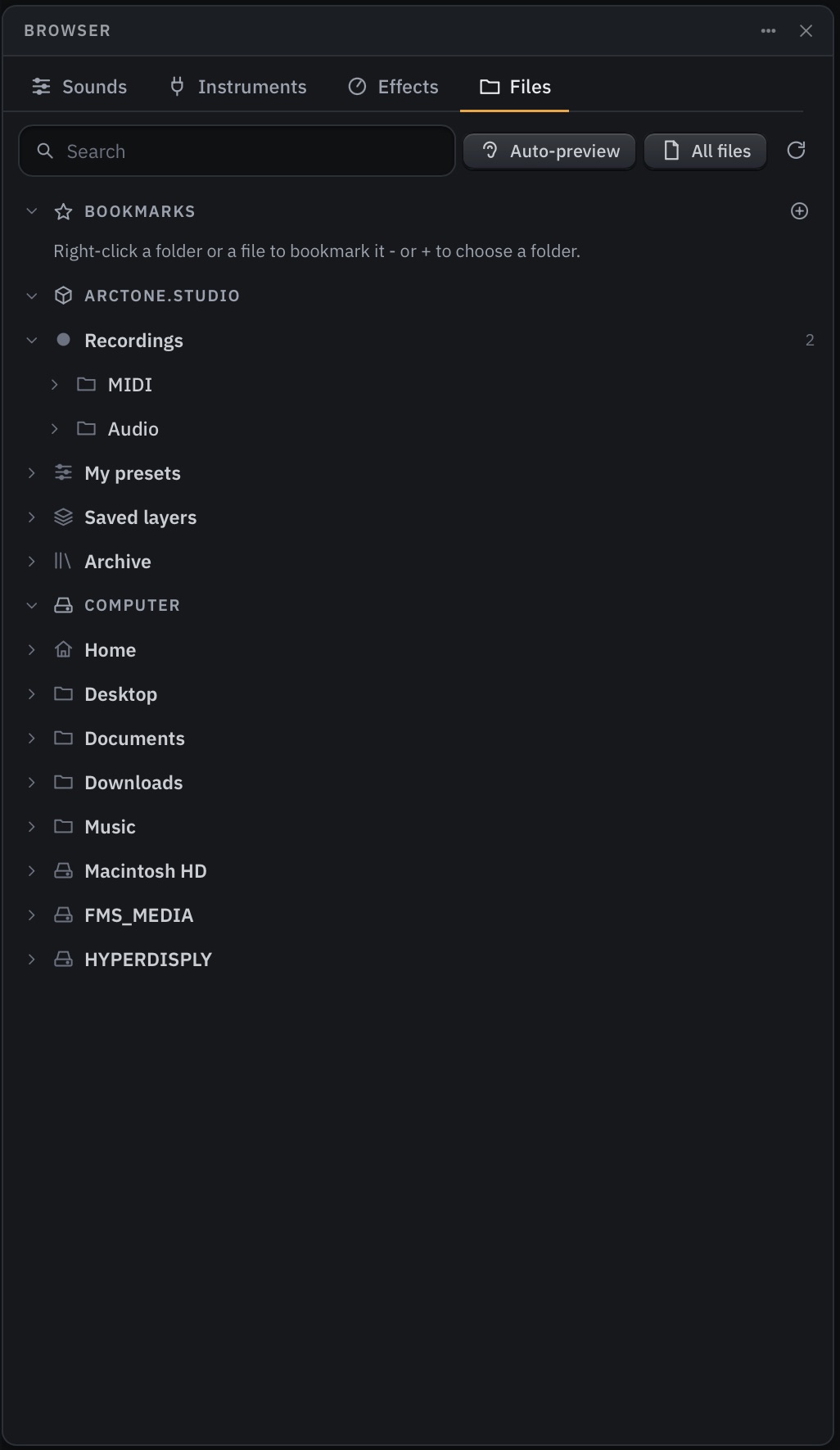
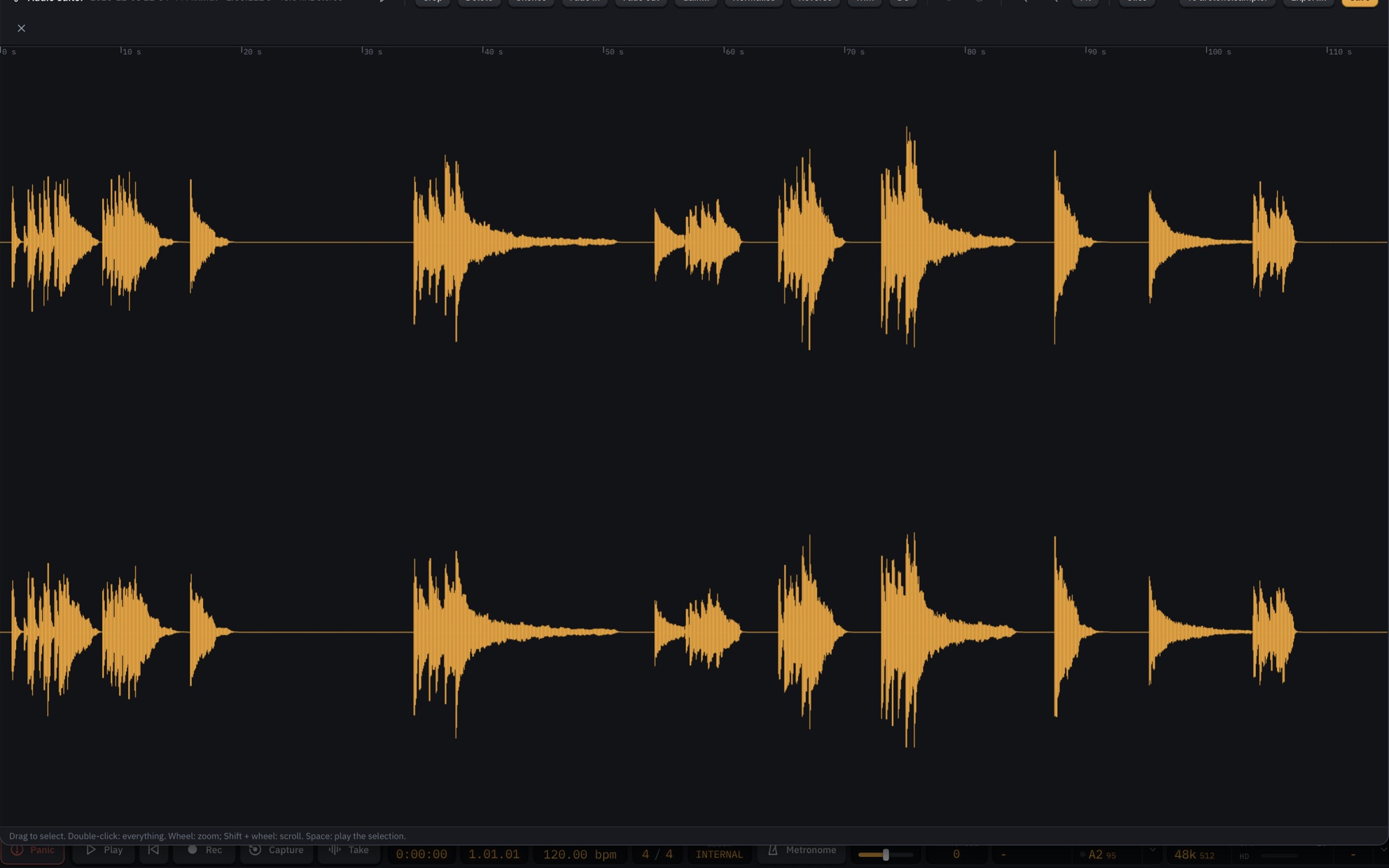
| Record | The mix as 24-bit WAV at the device's rate, optional stem per layer, and Performance.mid, each take in its own dated folder. |
| Capture | Always keeps the last 1, 2 (default), 5 or 10 minutes, or MIDI only. About 23 MB a minute at 48 kHz; the last 65,536 MIDI messages. The take starts a second before the first note. |
| Take strip | The last take: Play, Edit audio, Audio, MIDI and Folder. |
| Loudness meter | ITU-R BS.1770 / EBU R128: Momentary (400 ms), Short-Term (3 s), Integrated, Range (EBU Tech 3342), True Peak (4x oversampled). Targets -14, -16, -18, -23 and -24 LUFS; scales EBU +9, EBU +18 and Wide. |
| Audio editor | Crop, delete, silence, fades, gain, normalise to -0.3 dB, reverse, trim below -60 dB, DC removal, unlimited undo; Slice by spectral onset to arctone.sampler zones; To arctone.sampler; Export. |
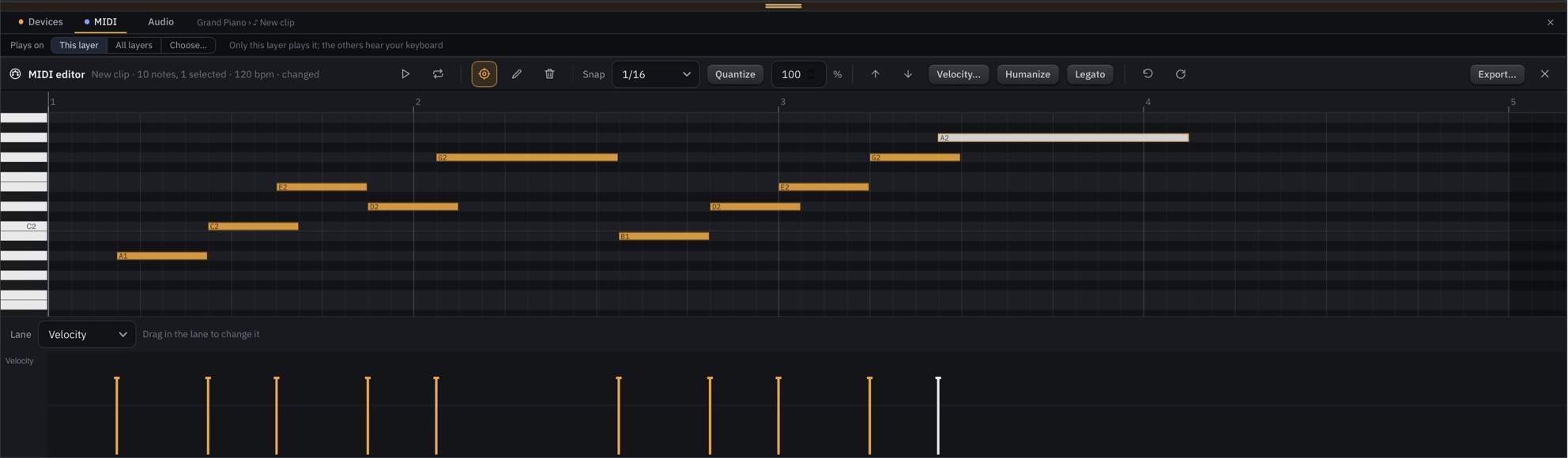
| MIDI editor | Quantize with strength, humanize (±10 ms, ±8 velocity), legato, lanes for velocity, sustain, mod wheel and pitch bend. |


| Preset file | .aspreset (XML): the plug-in's full state, a snapshot of every parameter, a SHA-256 checksum, the sample rate and block size used, and its place in the plug-in's list. |
| Safe writes | Atomic writes through a temporary file; the last 10 versions kept in a hidden history, written only when the state differs. |
| Loading rules | A bad checksum or another plug-in is refused; another format of the same plug-in loads from parameters with a note; every note goes to the log. |
| Verification | Round trip into a fresh copy (parameter tolerance 0.0001, at least 300 ms settle), a reload-stability check, and an optional null test: 0.5 s warm-up, then 3 s, passing at -60 dB or below. |
| Soft pass | When the waveforms can't cancel: loudness within 1.5 dB and spectrum within 1 dB (2.5 dB uncorrelated). More than 3 dB loudness difference fails. |
| Badges | Verified, Soft-verified, Parameter-only, Failed. 20 kinds of finding, each explained in the manual. |
| Previews | Rendered 3 s on a separate copy of the plug-in, the chord released at 70%; you hear 1-3 s. Patch previews: 4.5 s of the whole patch. |
| Search | Any words in any order across name, folder, plug-in, maker, category and format. Search by sound with ~ on brightness, noise, movement, attack, sustain, tail, width and loudness. |
| Importing | arctone.PresetImporter, inside arctone.studio, reads most of your plug-ins' presets into the Imported Presets library: quick-access presets in minutes, big sample libraries preset by preset. |
| Modes | Standard (in-process, crash recovery), Protect flagged plug-ins, Full protection (every plug-in in the arctone-plugin-host helper). In Settings > Audio & MIDI > Plug-in protection. |
| Grouping | Per layer (default), per plug-in, by manufacturer, or all together. Idle helpers kept warm for a minute, up to four. |
| When a plug-in stops | Declared stopped after three late blocks in a row and at least a tenth of a second. Only its slot goes quiet. Reload automatically in typically a second or two; three stops in a minute and it stays stopped. |
| In a DAW | The VST3 and AU start helpers from inside their own bundle. If the host blocks child processes, it falls back to Standard and says why. |
| Crash recovery | Always on: saved after each change and every 30 seconds. Restore, Restore without the plug-in, or Start fresh. Hold Shift at launch for safe mode. |
| Scanning | Each plug-in probed in its own worker process, several at once; crashes are blocklisted, hangs given up after 60 s (adjustable). |
| Crash logs | Time, version, system, the plug-in being called and a stack trace. Nothing is sent anywhere. |
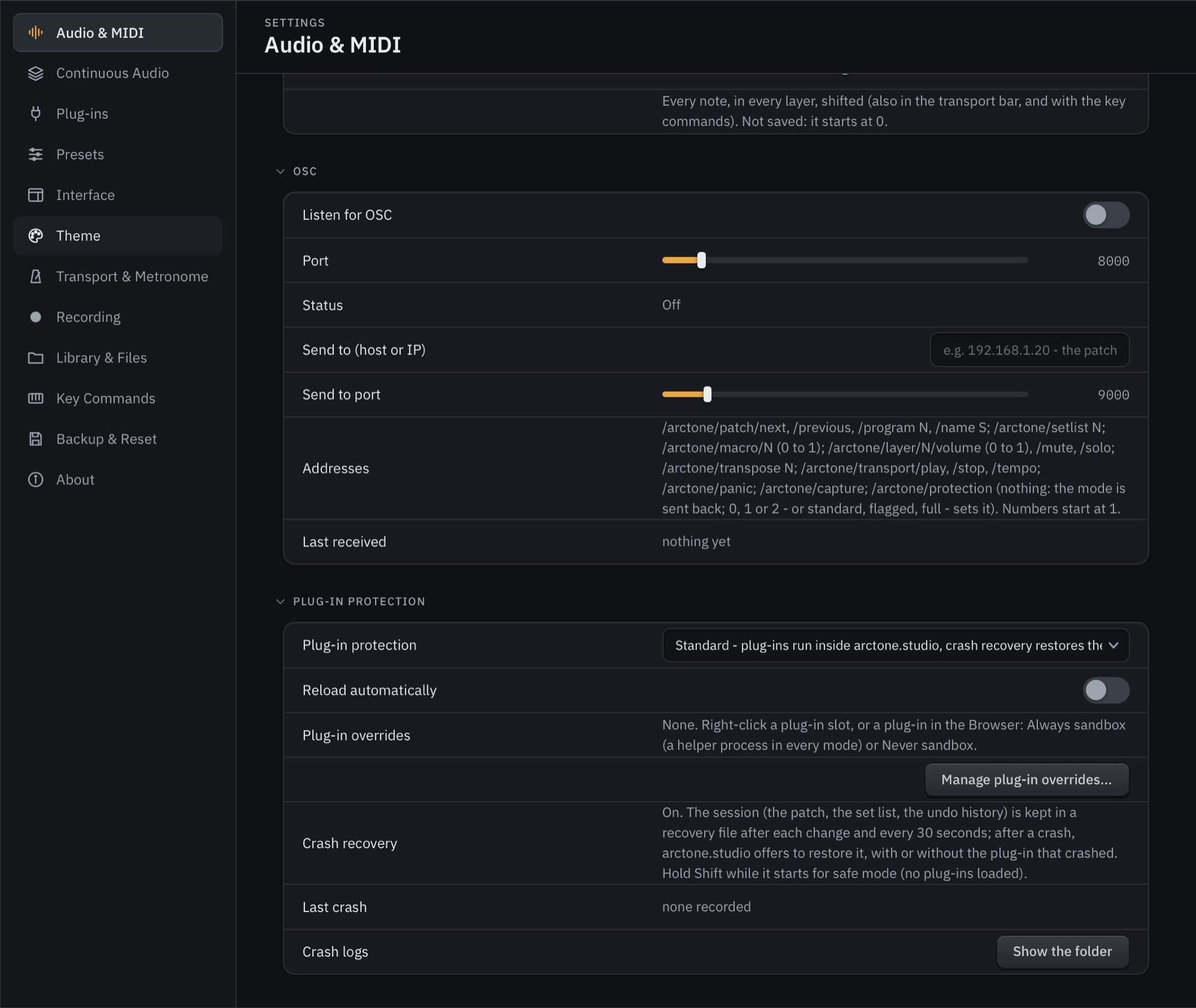
| Where | A page in the main window, in place of the layers: ≡ > Settings... or Cmd+, ; Close Settings or Esc to go back. |
| Pages | Audio & MIDI (devices, parallel processing, remote control, transpose, OSC, plug-in protection), Continuous Audio, Plug-ins, Presets, Interface, Theme, Transport & Metronome, Recording, Library & Files, Key Commands, Backup & Reset, About. |
| Key commands | Grouped as Patch, Edit, Layers, Transport, Transpose, Files and View; sets of your own, exported and imported as XML. |
| Where | Patches, set lists, presets, recordings and themes in Documents/Arctone/arctone.studio; imported presets in Music/arctone.studio/Imported Presets; settings in Application Support (Mac) or AppData (Windows). |
| Delete never deletes | Patches go to an Archive folder arctone.studio never empties; files go to the Trash. |
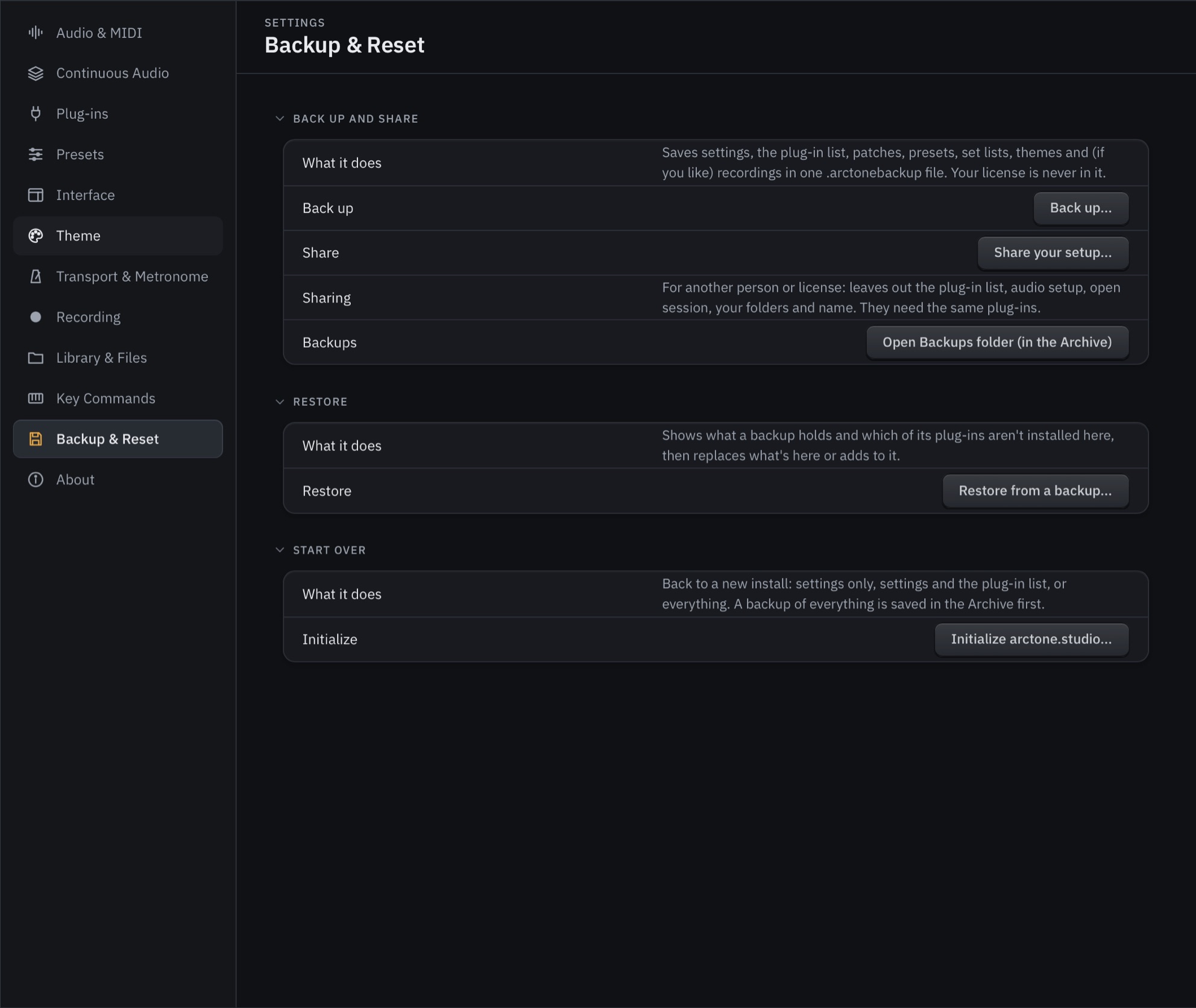
| Backup | One .arctonebackup (a ZIP with a manifest of every plug-in used), seven parts to choose. Restore shows which plug-ins are missing; Replace backs up first. |
| Initialize | Three levels, always after a full backup. The Grand Piano, OB-Xf and factory patches stay. |
| Themes | Seven built in; six main colours with the rest derived; pictures behind seven areas (strength 5-100%, blur to 40 px); shared as .json. |
| Keyboard and access | Key commands in seven groups, exportable as XML; command palette (Cmd+P); full keyboard navigation; VoiceOver and Narrator; Reduce Motion respected. |
| Help | F1 opens the manual at the control under the pointer, or a device's own help in the Device Panel; Quick Help; the same manual as a PDF. |
| A web page for a window | The interface is HTML drawn by the system's WebKit (Mac) or WebView2 (Windows), talking to the C++ engine through a bridge. Only plug-in windows are native. |
| Risky work in a second process | Scanning and untrusted plug-ins run in worker processes with two watchdogs: a liveness ping and a give-up timer. A crash takes the worker, never the app. |
| State over parameters | When a plug-in's saved states differ from preset to preset, the state is the truth. One synth reported about 100 of its 3,105 parameters wrongly; applying them would have spoiled every preset. |
| Why -60 dB, and why 3 dB | Two equal, unrelated signals leave about +3 dB when subtracted, so a sound that can't cancel is judged by loudness and spectrum, and more than 3 dB apart is a fail. |
| Copies stay in step | A copy that saves a preset touches one file; every other copy (standalone or in a DAW) checks it once a second. |
| Never fail silently | Every problem is shown in the window's messages and written to a log. |
| Entitlements for real plug-ins | The hardened runtime is opened only as far as plug-ins need: loading other companies' code, and the memory rules PACE/iLok-protected plug-ins require. |
Download the full arctone.studio Manual (PDF).
Pricing
Everything in it: the host, arctone.PresetImporter and every feature, on Mac and Windows. No tiers, no add-ons, no subscription.
Screen — at least 1000 × 660 at 100%; interface size 75–200%.
Plug-ins that can’t load — on Apple Silicon, Intel-only and 32-bit plug-ins.
Support
Yes. Download it and you get the whole app free for 14 days, nothing held back: no sign-up, no email, no credit card. When the trial ends, buy a license and enter the key from your purchase email to keep going.
No. arctone.studio is one payment, with no subscription and nothing to renew. Every update to arctone.studio 1 is free. A future major version may be a paid upgrade; that hasn’t been decided yet.
Yes. Try it free for 14 days first, so you know it works with your plug-ins before you pay. And if you buy and it isn’t right for you, ask for a refund within 14 days of your purchase and you get your money back in full.
Yes. One payment covers the standalone app and the plug-ins on Mac and Windows, on up to three computers. You can move the licence to a new computer at any time from the License menu.
Yes, as a VST3 plug-in (Mac and Windows) or an Audio Unit (Mac). The plug-in uses the same engine and files as the standalone app, so a patch saved in one opens in the other.
VST3, Audio Unit (Mac) and VST2. On Apple Silicon, Intel-only and 32-bit plug-ins can’t load.
Most of them, but not every one, and it tells you which ones it missed and why. It reads the preset lists plug-ins show to a host, the preset files they keep on disk, and the libraries of many makers, and for some plug-ins it steps through the plug-in’s own window. On our M4 test Mac it brought in over 202,000 presets in 8 hours.
Some presets it can’t reach. Some plug-ins keep their presets to themselves and show none to a host; for those, arctone.studio keeps each sound as you play it. Some factory libraries are encrypted, so the importer can list them but not bring the sounds in. A plug-in that needs its licence activated (iLok, for example), can’t find its samples, or runs as a demo is skipped until you sort that out, then Retry picks it up. On Apple Silicon, Intel-only plug-ins can’t load, though their preset files, where they have any, still come in.
Nothing is hidden: at the end of a scan every plug-in has a line that says what came in, what didn’t and what to do about it, and a stopped scan carries on where it left off.
With plug-in protection, plug-ins run in a separate helper process: only that plug-in’s slot goes quiet and it reloads automatically. Crash recovery is always on, and nothing is sent anywhere.
Only once, to activate. After that arctone.studio works offline.
No. arctone.studio is made by Arctone Systems, a small company of two musicians who are also developers, passionate about music and technology. We built it for our own playing and sound design, to get every instrument and effect we own into one place we could actually play from. When other musicians saw it, they kept telling us the same thing: you need to get this out so other people can use it. So we did.
We think it is the easiest, and one of the deepest, ways to design sounds with the plug-ins you already own, and the Preset Importer does something we haven’t seen anywhere else. Being small means you are talking to the people who make it: when you write to support, one of us reads it, and what you tell us shapes the next update.
The full manual is built into the app (press F1 over any control) and available as a PDF manual. You can also email support@arctone.studio.
The whole app, nothing held back: no sign-up, no email, no credit card. Mac now, Windows coming soon. Then one payment, Mac and Windows on the same licence, with the 14-day money-back guarantee.